How to Use the Watchtower Fundraise Trigger
Last updated: August 26, 2025
🔍 Article Overview:
The Watchtower Fundraise Trigger allows you to automatically discover and engage with companies that have just announced new funding rounds - ideal timing for personalized outreach.
🙋 How do I set up a Fundraise Trigger?
Step 1: Create a Watchtower Campaign
Start by creating a new campaign and selecting the Watchtower campaign type. Unlike traditional campaigns that target existing lead lists, Watchtower campaigns monitor the web in real time for intent signals, such as:
Website Visitors
Funding Announcements (e.g. Seed, Series A, etc.)
Job Postings
Champion Job Tracking
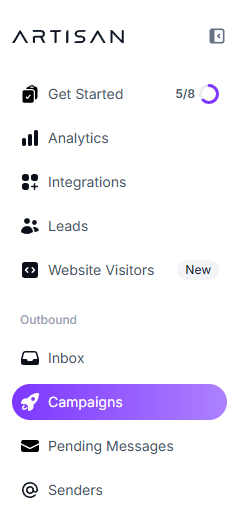
Go to the Campaigns page
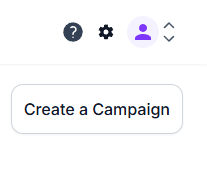
Click Create Campaign in the top-right corner
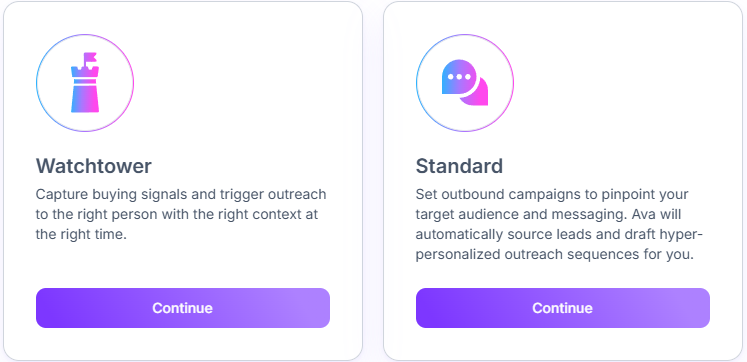
Make sure to select a Watchtower campaign
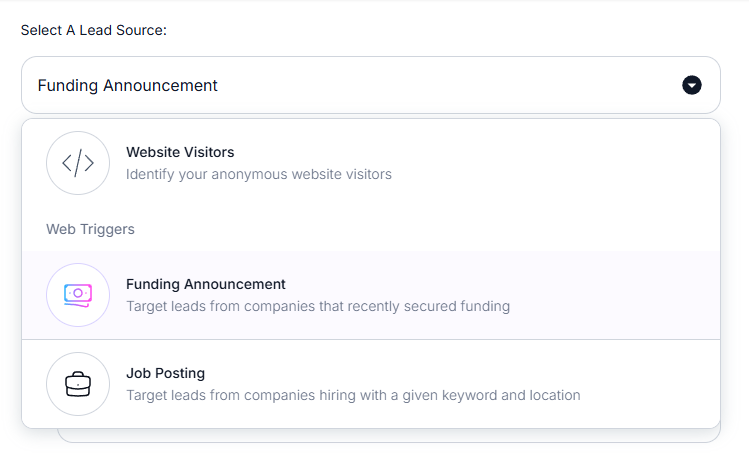
Select Funding Announcement as your Lead Source
Step 2: Set Your Targeting Criteria
There are two levels of targeting to configure:
1. Company Profile Targeting
Here, you can define the kinds of companies you want to engage. Filters include:
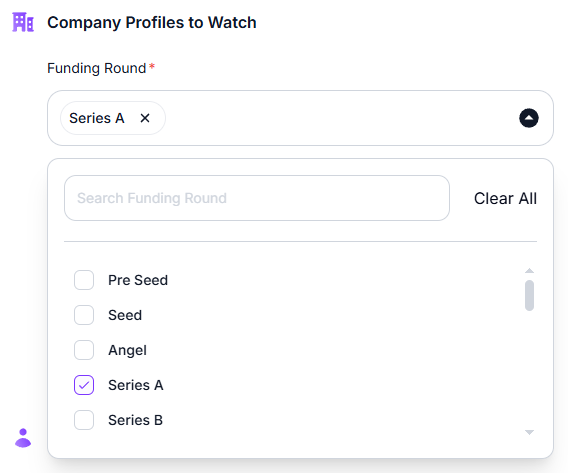
Funding round (e.g. Series A, Seed)
When selecting the funding round, you can multi-select multiple rounds (e.g., Series A, B, and C) to broaden your targeting and capture more opportunities.
Location
Industry/Sector
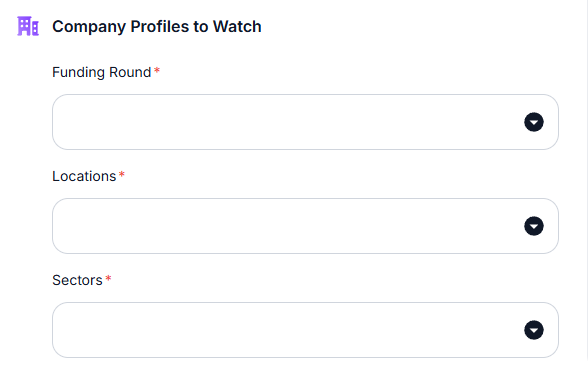
For example, to target companies that recently raised a Series A, simply select that from the dropdown.
2. Lead Profile Targeting
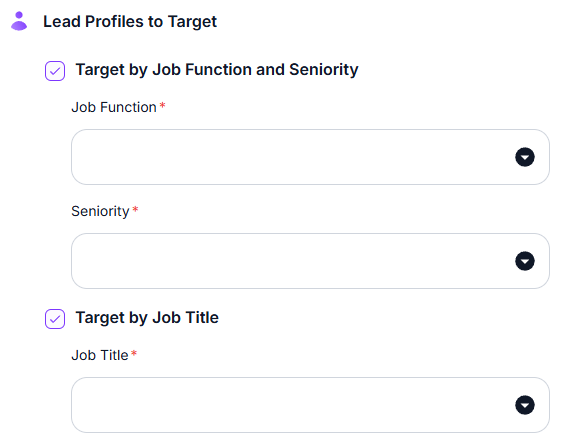
Next, choose the specific types of contacts you want to reach out to.
Job function (e.g. Marketing, Finance, Operations)
Seniority (e.g. Director, VP, C-level)
Job title (e.g. CEO, Head of Sales)
If you're aiming to reach CEOs at newly funded companies, you can set that condition here.
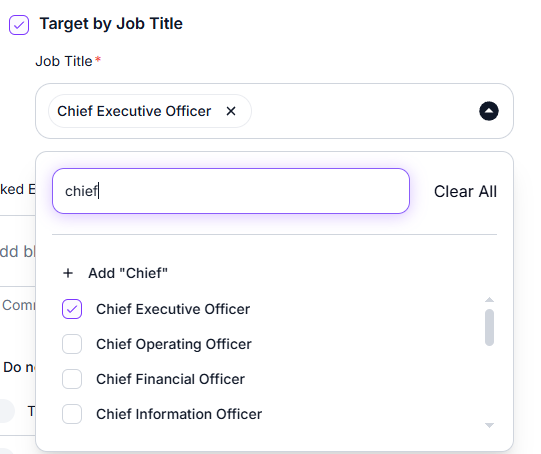
You can choose to configure either Job Function & Seniority or Job Title, depending on how specific you want your targeting to be. You don’t need to fill out both sections unless you want to.
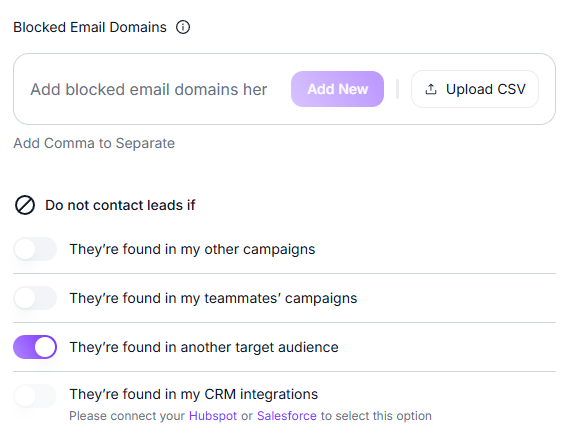
💡 Apply Any Blacklists
Just like in standard campaigns, you can exclude certain companies or contacts using:
Domain-level exclusions
Other Campaign exclusions
Other Target Audience exclusions
CRM exclusions
You can also find this information in our Loom recording here.
 Tips for Success:
Reach out to your CSM for an advanced campaign optimization session!
Need Assistance?
Contact our Support team if you have any questions or issues!