How to Use the Watchtower Job Posting Trigger
Last updated: August 26, 2025
🔍 Article Overview:
The Watchtower Job Posting Trigger allows you to automatically discover and engage with companies that have recently posted job openings, signaling growth, hiring needs, or organizational changes that may align with your offering - great timing for personalized outreach.
🙋 How do I set up a Job Posting Trigger?
Step 1: Create a Watchtower Campaign
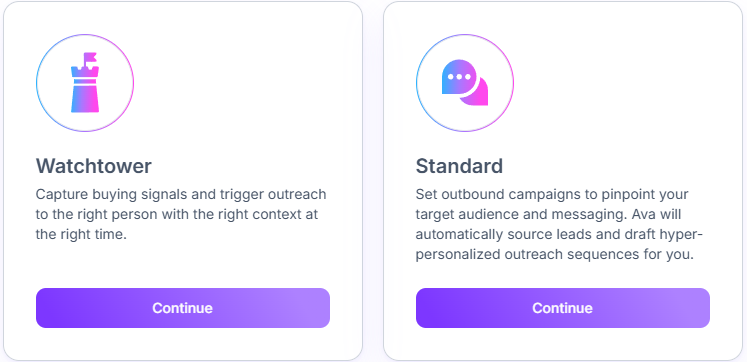
Start by creating a new campaign and selecting the Watchtower campaign type. Unlike traditional campaigns that target existing lead lists, Watchtower campaigns monitor the web in real time for intent signals, such as:
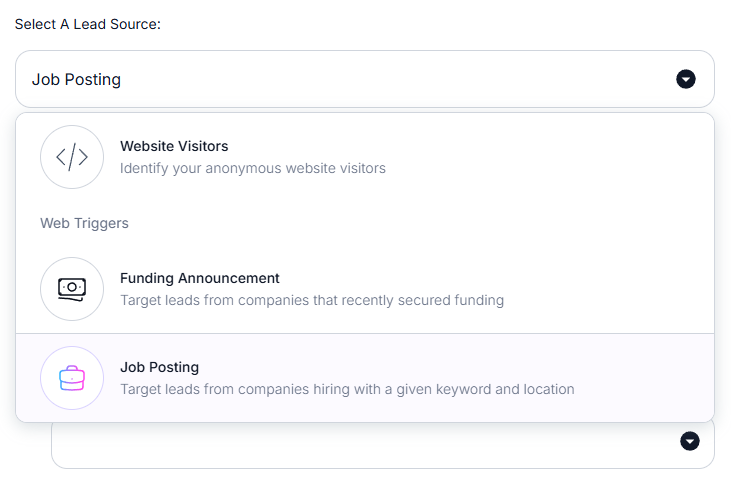
Website Visitors
Funding Announcements (e.g. Seed, Series A, etc.)
Job Postings
Champion Job Tracking
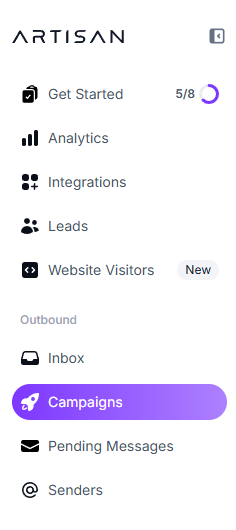
Go to the Campaigns page
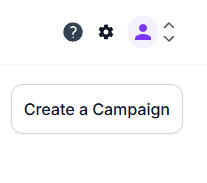
Click Create Campaign in the top-right corner
Make sure to select a Watchtower campaign
Select Job Posting as your Lead Source
Step 2: Set Your Targeting Criteria
There are three levels of targeting to configure:
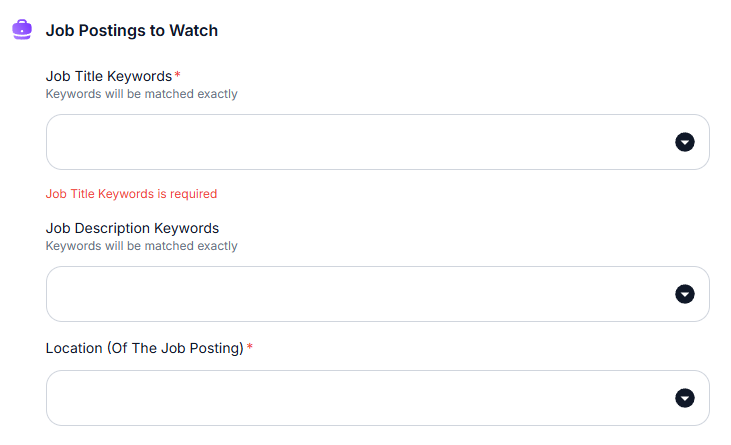
1. Job Postings to Monitor
These filters determine what kind of job openings should trigger outreach:
Job Title Keywords - e.g. “Sales Manager”, “Head of Engineering”
Job Description Keywords - filter by terms found in the job ad itself (e.g. “outbound prospecting”, “AWS experience”)
Job Location - specify where the job must be based (city, region, or country)
2. Company Profiles
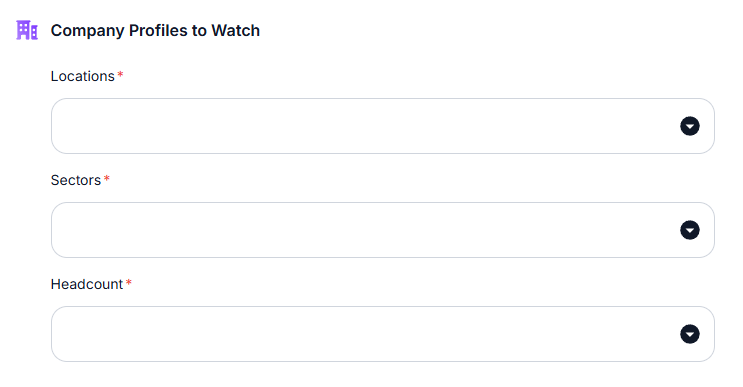
Define the type of companies you're interested in:
Location - target companies based in specific region
Sector / Industry - e.g. Fintech, Healthtech, SaaS
Headcount - e.g. 11-50 employees, 51-200, etc.
Lead Profiles
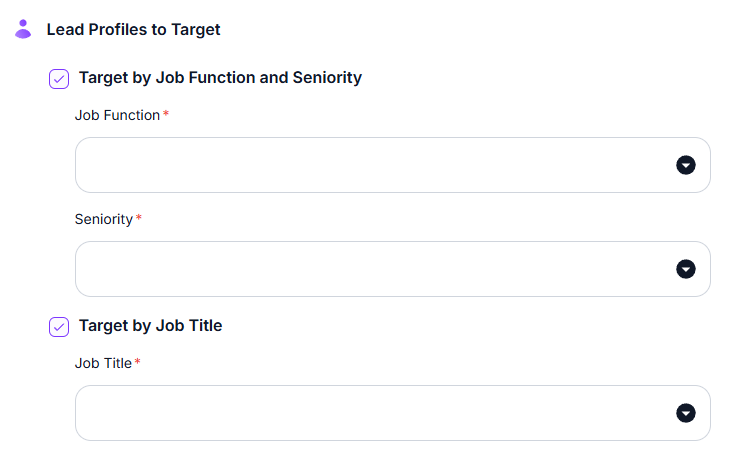
Choose who at the company should be contacted once a matching job is detected:
By Job Function & Seniority - e.g. Marketing Directors, VP of Sales
By Specific Job Title - e.g. “Chief Revenue Officer”, “Head of HR”
All of the above keywords are exact match filters. Only postings that include the exact terms you specify will trigger outreach.
💡 Apply Any Blacklists
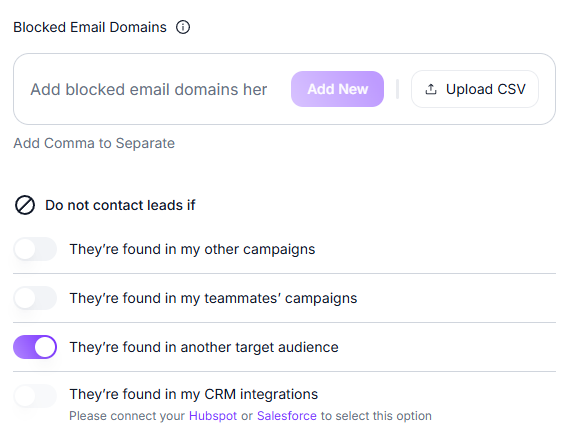
Just like in standard campaigns, you can exclude certain companies or contacts using:
Domain-level exclusions
Other Campaign exclusions
Other Target Audience exclusions
CRM exclusions
 Tips for Success:
Reach out to your CSM for an advanced campaign optimization session!
Need Assistance?
Contact our Support team if you have any questions or issues!