How to Integrate Ava With Slack?
Last updated: June 10, 2025
🔍 Article Overview:
This guide explains how to integrate Ava with your Slack workspace and why it’s worth doing.
🙋 Why should I integrate Ava with Slack?
Integrating Ava with Slack lets you receive real-time updates in your preferred channel, so you never miss a thing.
🙋 How do I integrate Ava with Slack?
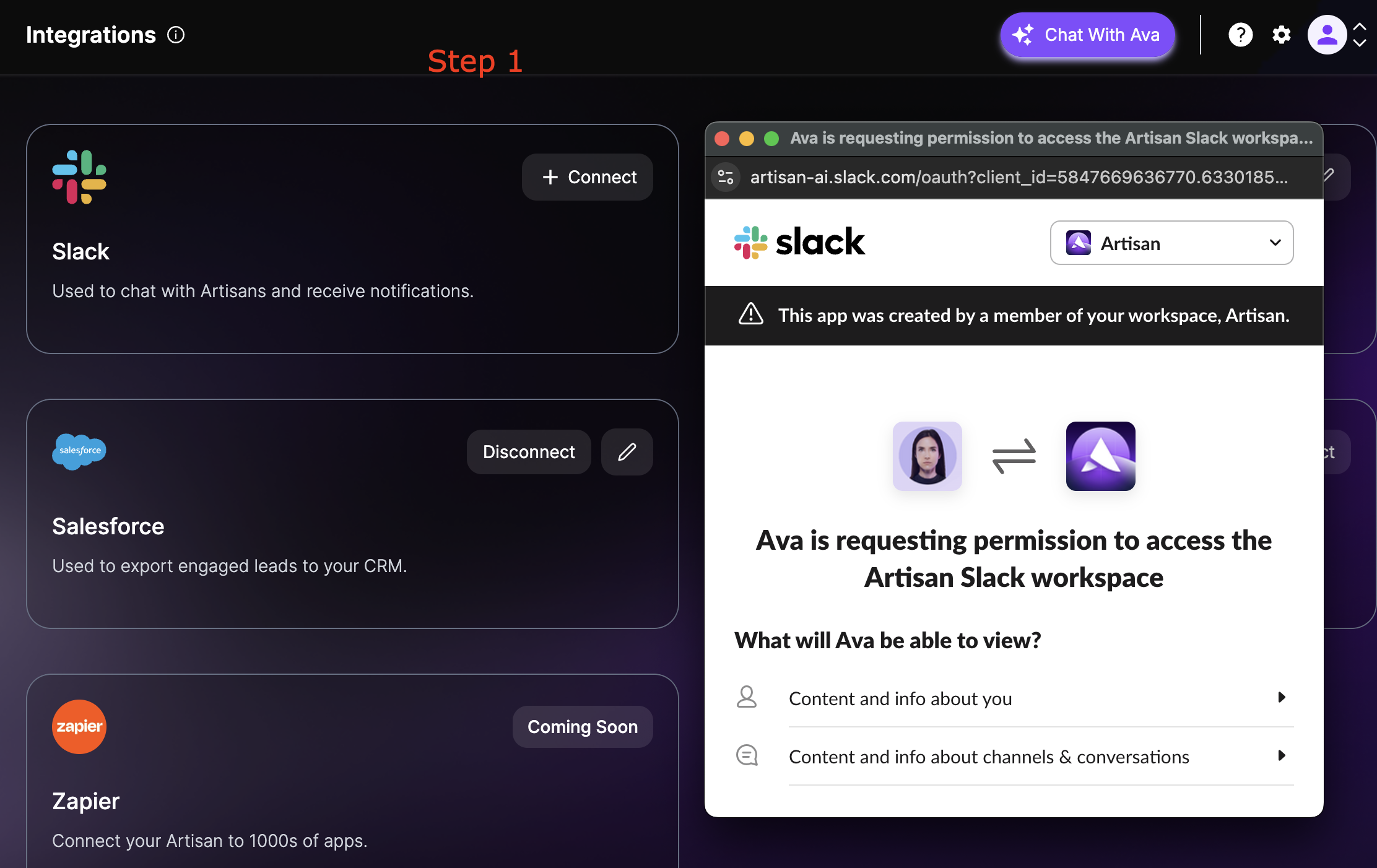
Step 1: Add Ava (The App) Into to Your Workspace
Go to the Integrations tab
Click Connect
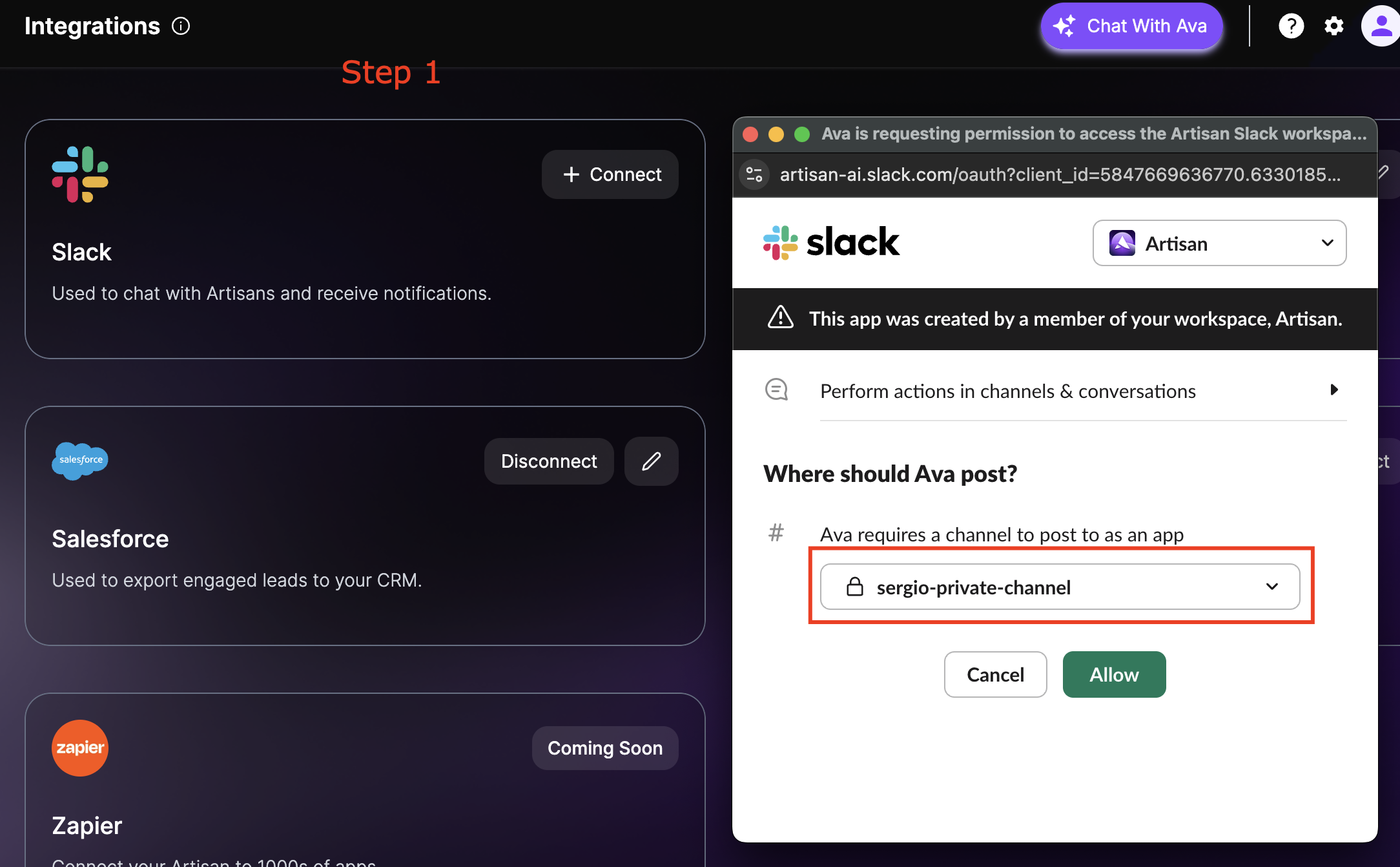
Select a channel
Step 2: Add Ava (The User) Into to Your Workspace
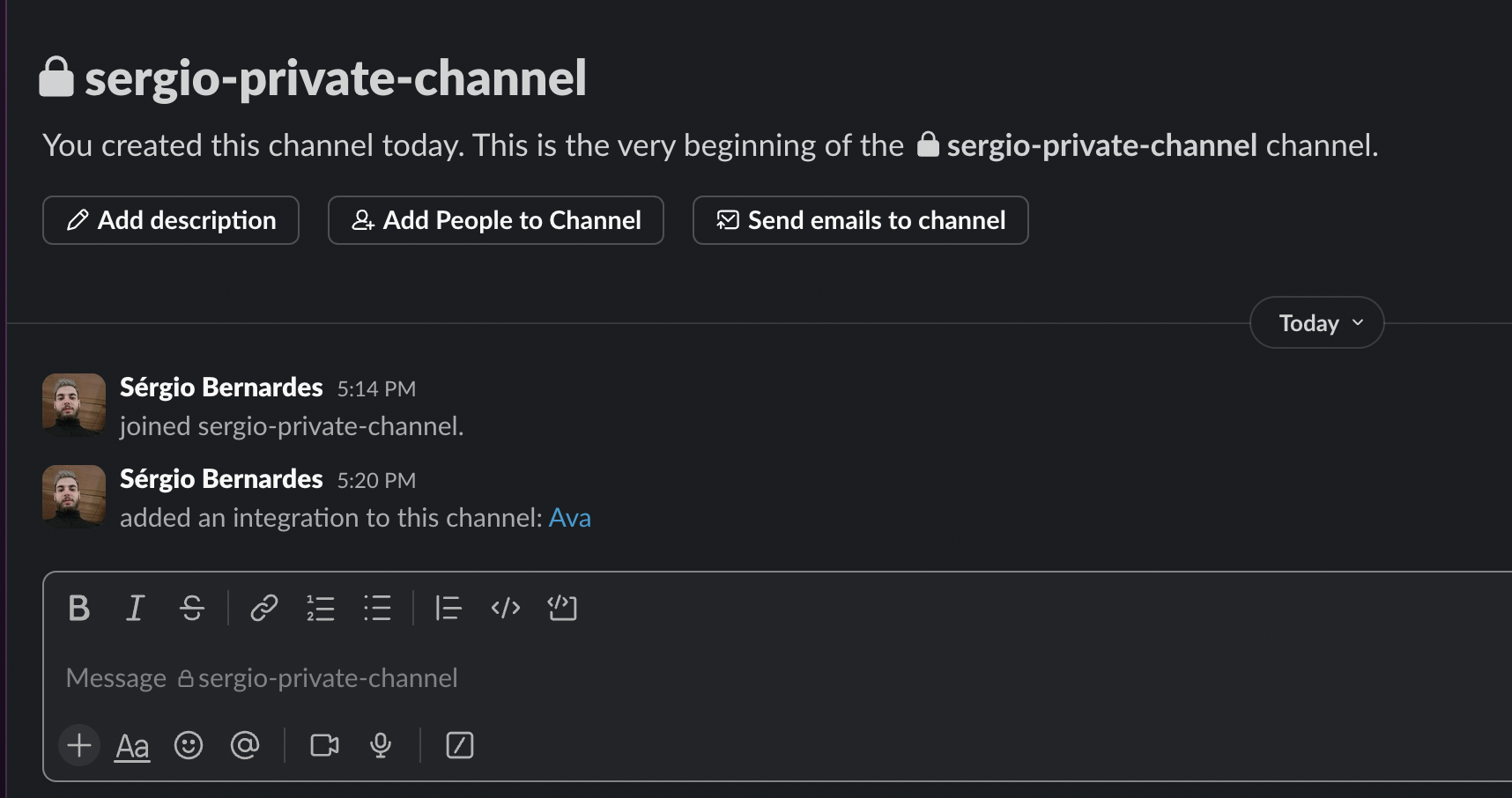
Inside the private channel you selected in Step 1, Ava (the app) will already appear. Now, you need to invite Ava (the user), just like you would any other Slack user.
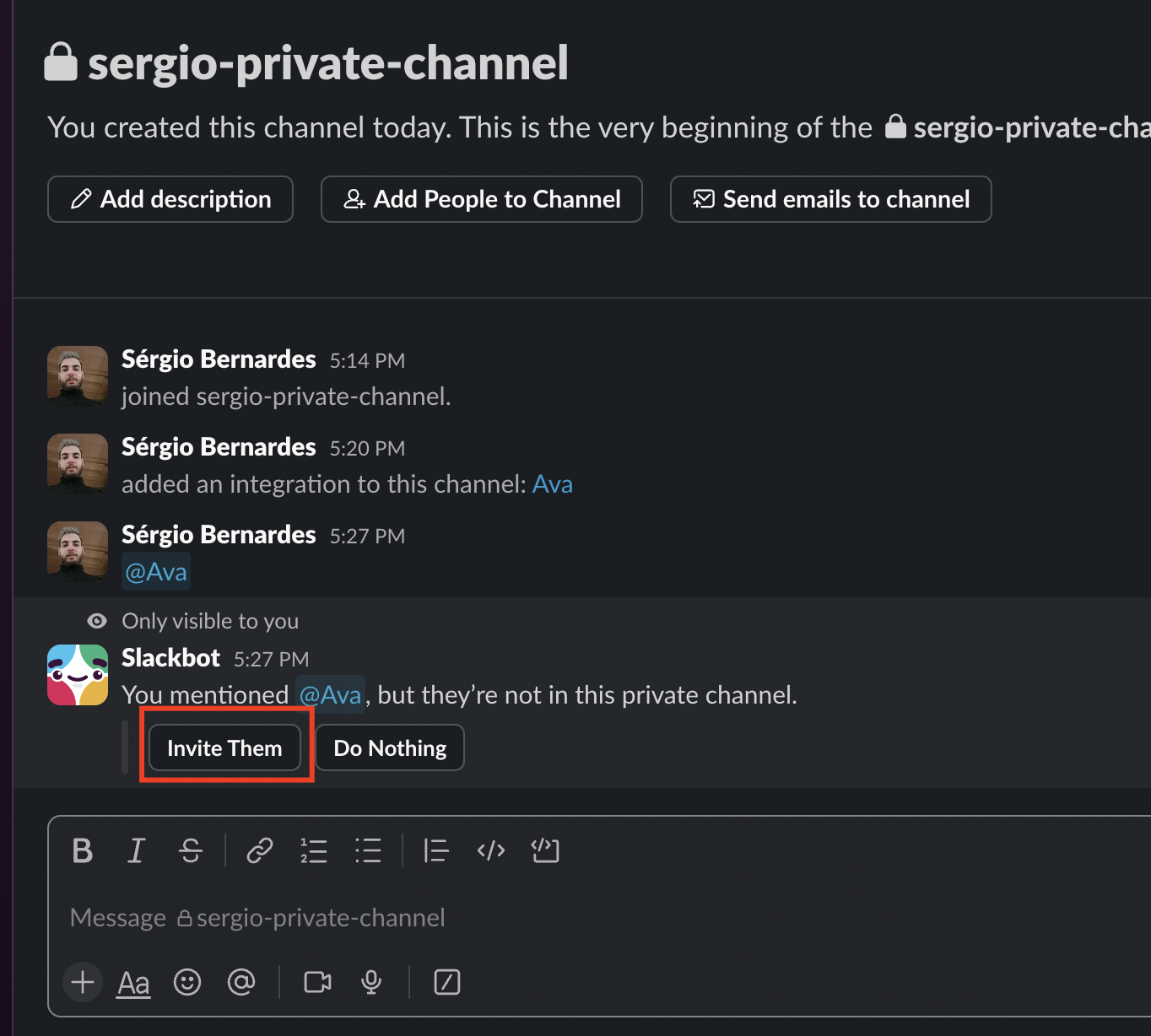
Type “@Ava” and select the one labeled Ava app (if there are multiple, choose the one that’s online.)
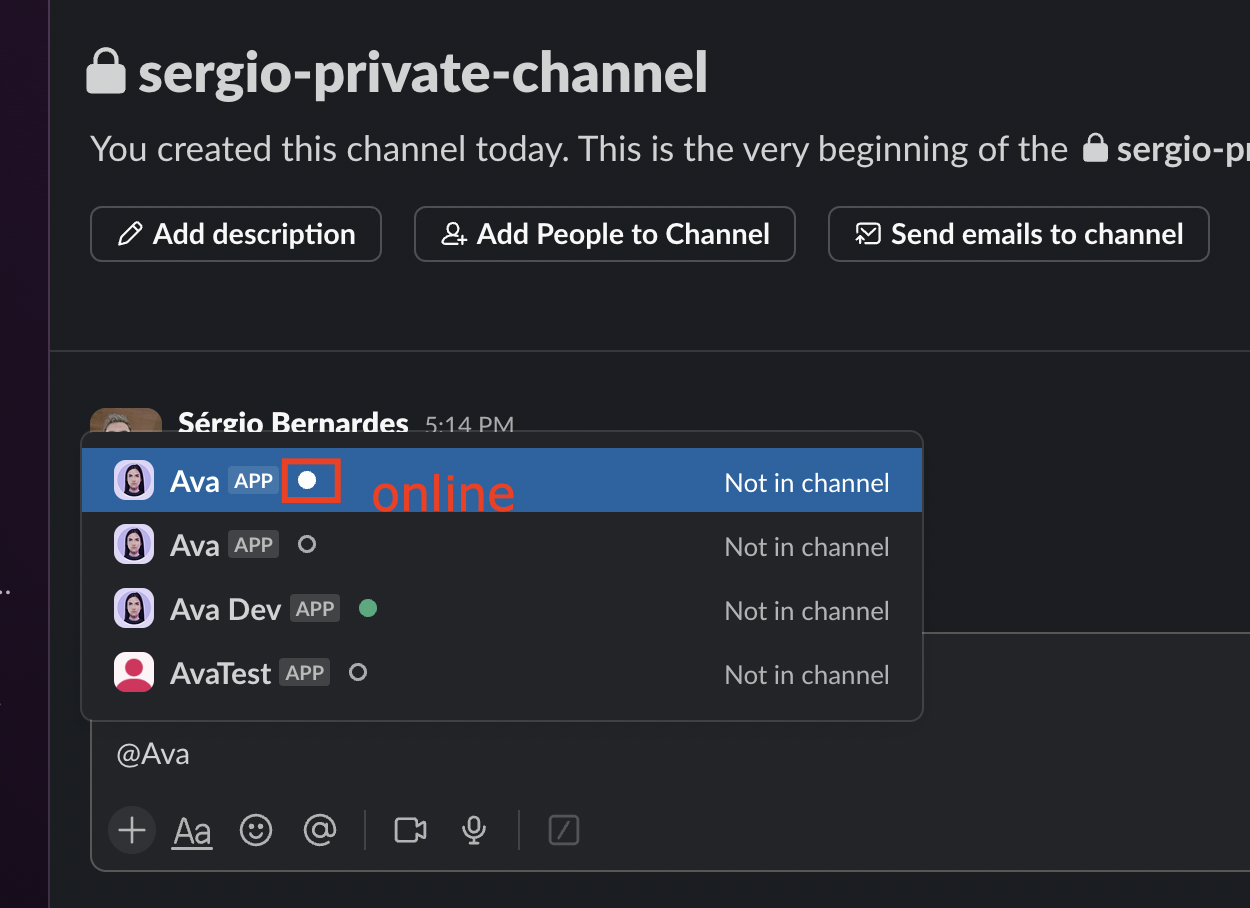
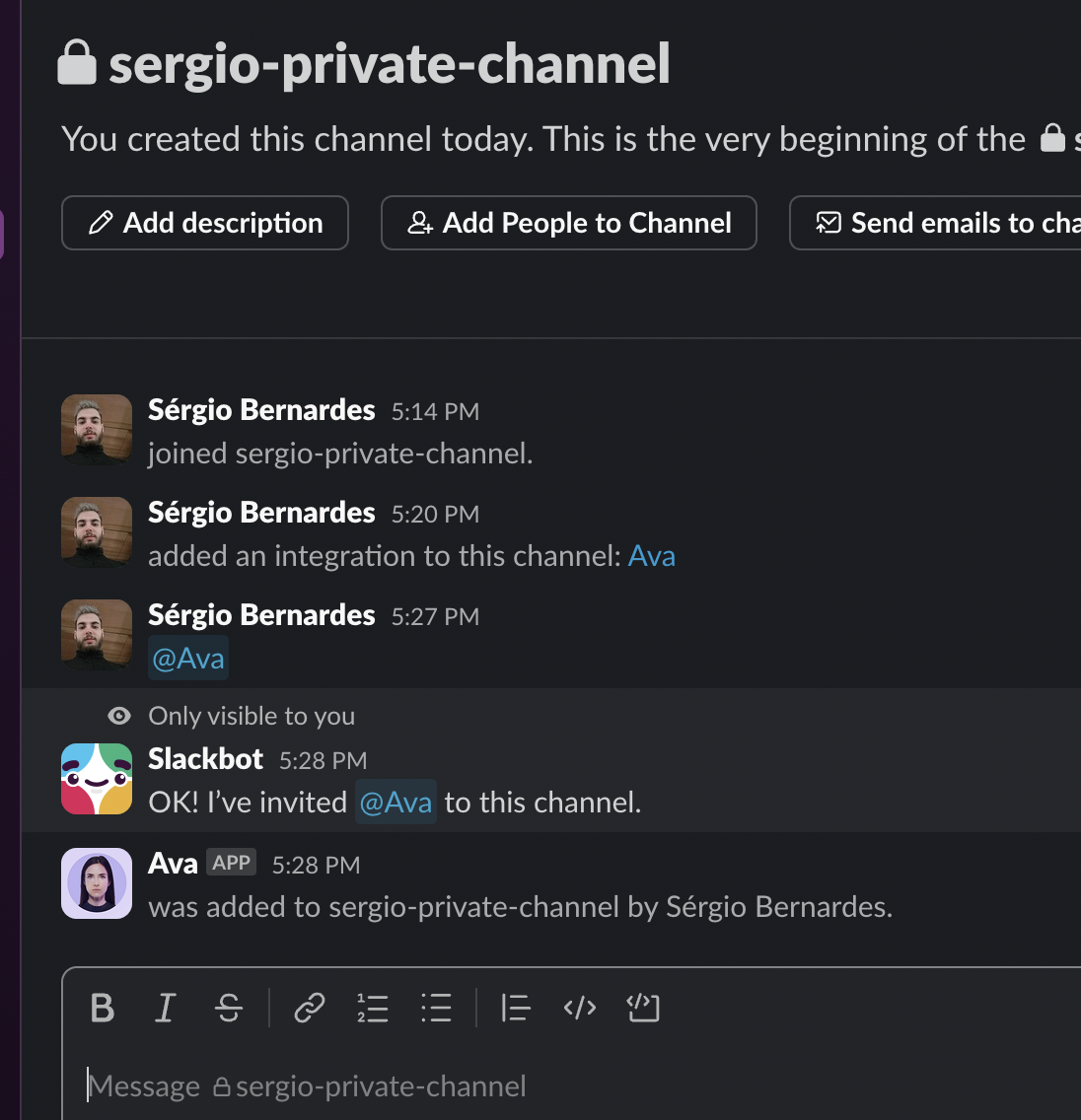
After a few seconds, Slack will prompt you that Ava isn’t in the channel. Click Invite Them to complete the step.
Step 3: Complete the Integration
Return to the Artisan app
Refresh the page
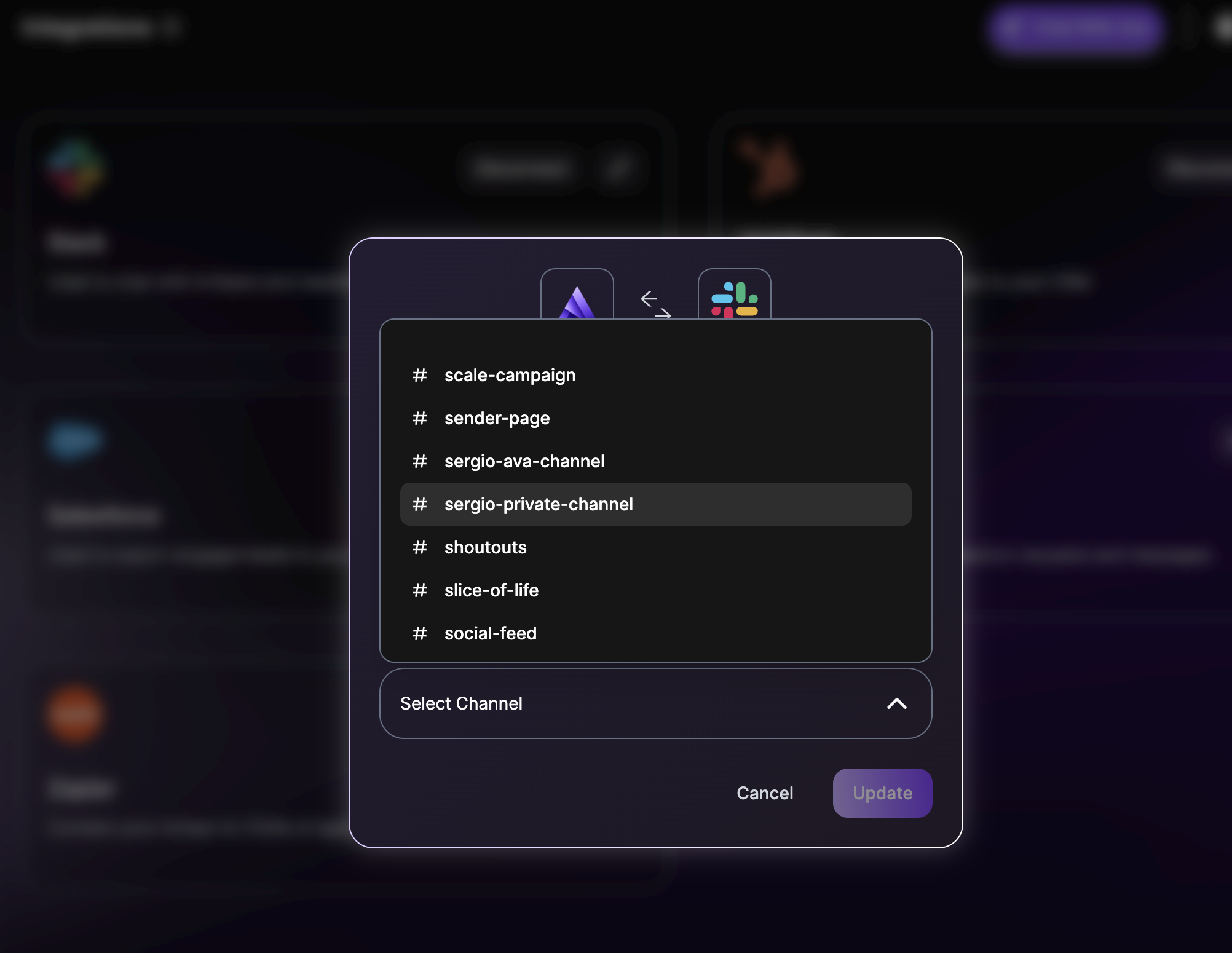
Re-select your Slack channel in the integration popup
💡 Quick clarification
The Slack integration has two parts:
Adding Ava (the app) to your Slack workspace
Selecting a channel for Ava (the user) to communicate in
It might feel redundant that both steps involve selecting a channel - but there’s a reason.
In Step 1, you’re acting as your Slack user, so you can browse and select private channels.
In Step 2, you’re viewing channels from Ava’s perspective, so private channels won’t appear by default unless Ava (the user) is explicitly invited
🗒 Tips for Success:
Take your time and follow the steps carefully. Each part of the integration is required for Ava to work properly in Slack.
Need Assistance?
Contact our Support team if you have any questions or issues!