How to Create a Sequence With Workflow Builder
Last updated: January 6, 2026
 Article Overview:
This article explains what the Workflow Builder feature is and how to use it.
 What is a Workflow Builder?
The Workflow Builder lets you tailor your outreach process by deciding whether Ava sends an email or a direct message, adjusting the frequency and delay between follow-ups, and specifying the total number of outreach steps.
How do I create a sequence with the Workflow Builder?
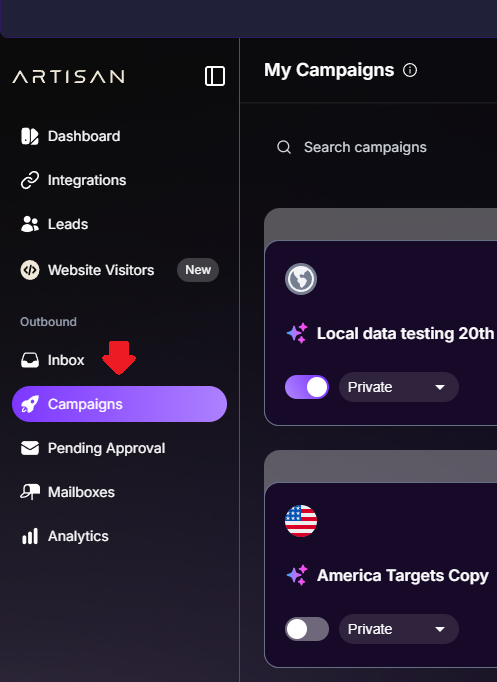
Step 1: Select the Campaign You Want to Create a Workflow For
Navigate to Campaigns
Step 2: Open the Workflow Builder Tool
Navigate to Workflow

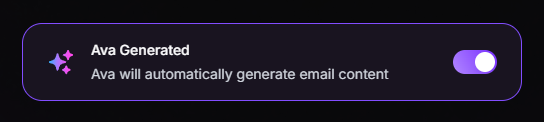
Step 3: Choose if You Want Your Messages to Be Ava Generated or Not
By opting to turn ON Ava Generated, all your messages will be automatically generated for you.
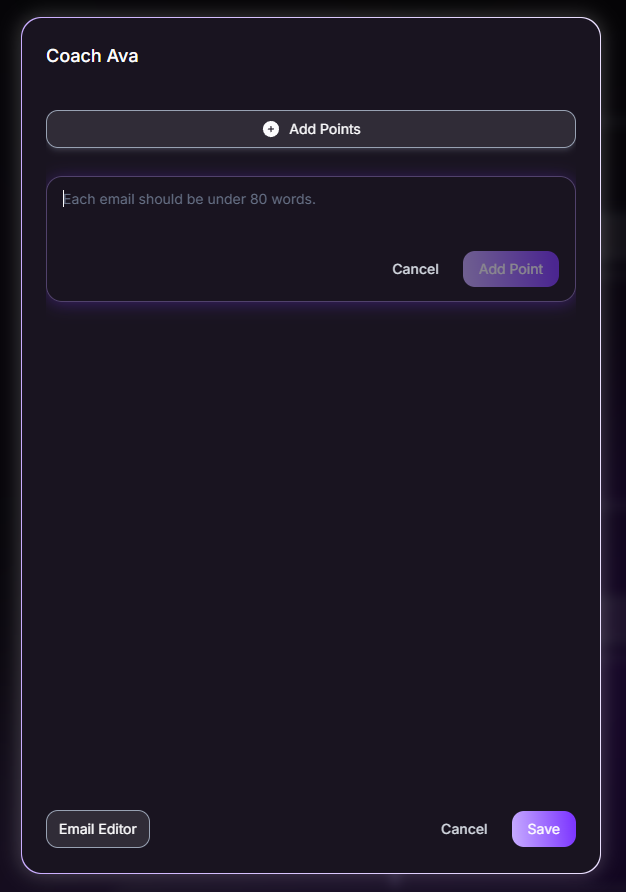
You can give Ava Coaching Points to personalize your messags even further.
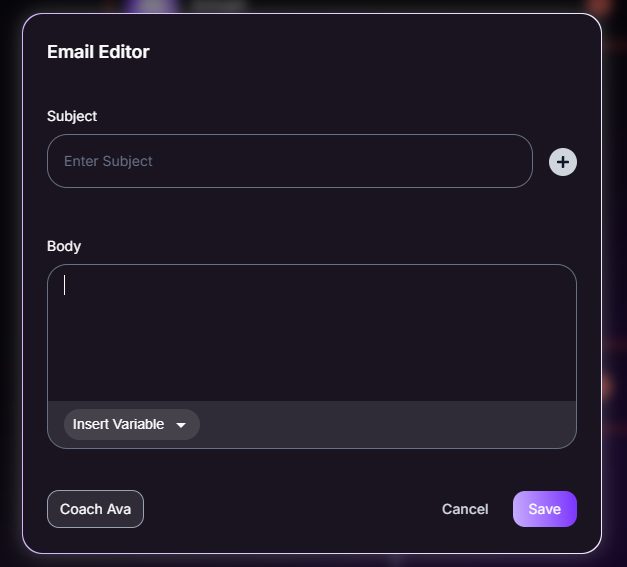
By opting to turn OFF Ava Generated, you will have to manually add the subject and body for each of the outreach steps. You also have an option to add a number of variables to your messages.
Step 4: Start Creating Your Sequence
Click Add Step
Select if you would like an Email or a Connection Request
Add another step, and select the amount of days Ava should wait before reaching out again
Repeat this process for any number of steps you would like
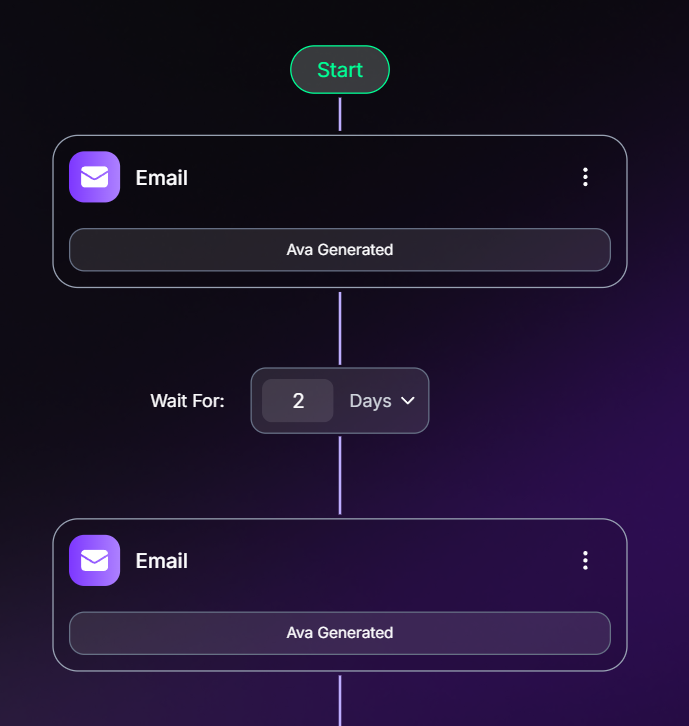
 Your workflow can either be fully Ava Generated or fully Manual - there is no in between! It can also have a mix of emails and direct messages.
 Tips for Success:
Experiment with different workflows to find the one that yields that best results! Remember to give Ava coaching points to further personalize your messages.
Need Assistance?
Contact our Support team if you have any questions or issues!