Ava 1.0: Slack Integration guide
Last updated: April 21, 2026
Overview
Artisan's AI SDR, Ava, runs autonomous outbound sales campaigns on your behalf. Integrating Ava with Slack brings her most important activity — positive replies, escalations, and task reminders — directly into the Slack channel you designate, so your team never misses a hot lead.
This article walks you through installation, what to expect once the integration is live, and how to configure it. Setup takes about 2 minutes.
Install the app

→ Click here to install Ava for Slack
Already have an Artisan account? Sign in at app.artisan.co and use the Integrations tab inside the app to install from there.
What Ava does in Slack
Once installed, Ava posts three types of notifications to the Slack channel you designate:
Positive reply alerts — The moment a prospect replies with interest to one of your outbound sequences, Ava posts in your channel with the prospect's name, company, and full reply content so your team can jump in fast.
Escalations for human approval — When a prospect's reply needs human judgment (e.g. a pricing question or a complex objection), Ava escalates the drafted response to your team with one-click approve or edit.
Task and account reminders — Overdue tasks and urgent account alerts surface directly in-channel so nothing falls through the cracks.
Each Slack message includes quick links back to the full conversation in Artisan so your team can take action without leaving the workflow.
Why integrate?
Integrating Ava with Slack lets you receive real-time updates in your preferred channel, so you never miss a thing. Instead of checking Artisan for new replies, your team sees activity where they already work.
Installation steps
Before you start: You'll need an active Artisan account and admin access to your Slack workspace.
Step 1 — Click Connect on the Slack card in Artisan
Head to your Artisan dashboard, navigate to the Integrations tab, and click Connect on the Slack card. Slack's OAuth screen will open asking you to grant Ava permission to access your workspace. Review the permissions and continue.
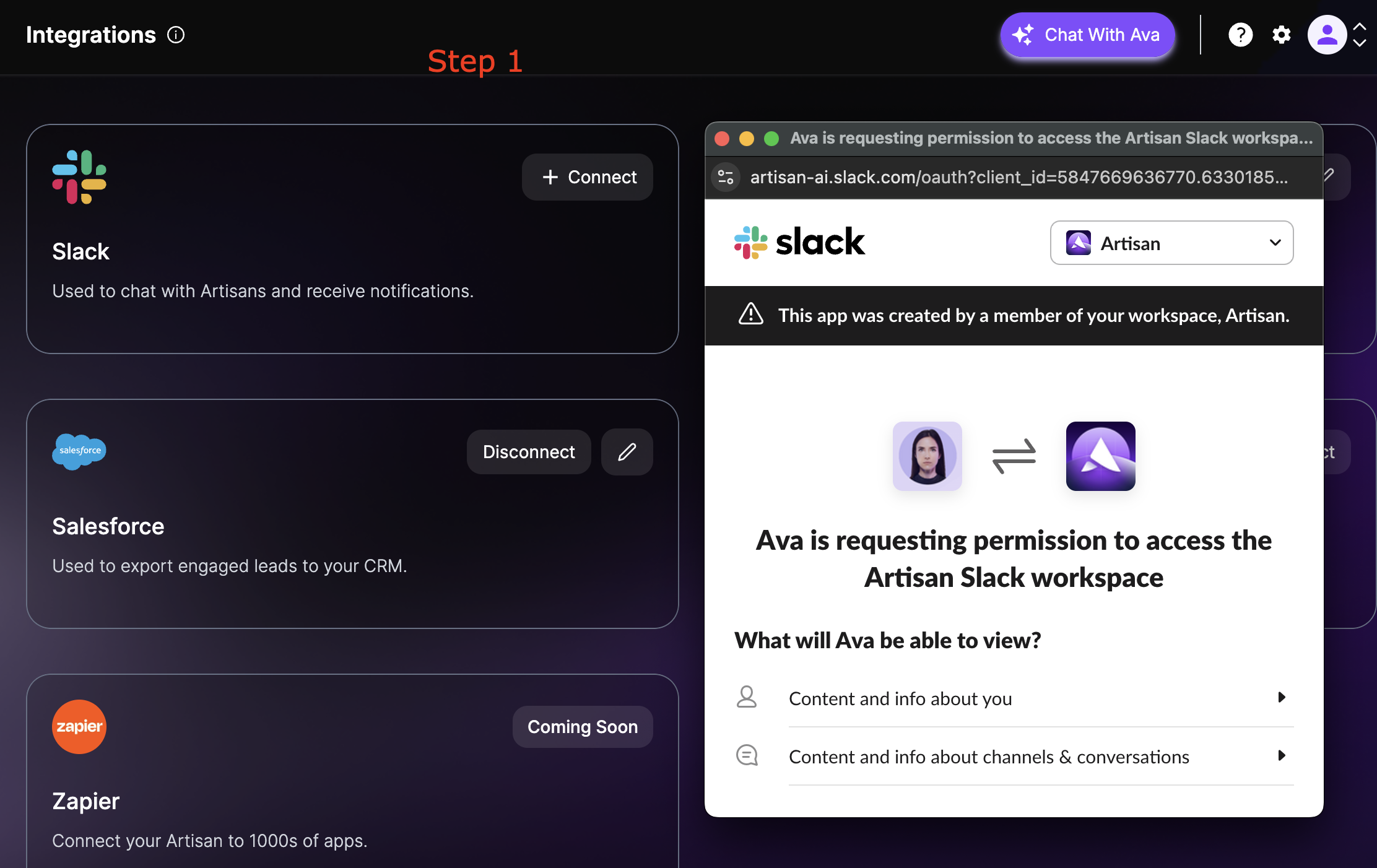
Step 2 — Choose which channel Ava should post to
Scroll down in the Slack OAuth screen to the "Where should Ava post?" section. Select a channel from the dropdown — public or private — and click Allow. You're authorizing Ava to post in this channel as an app.
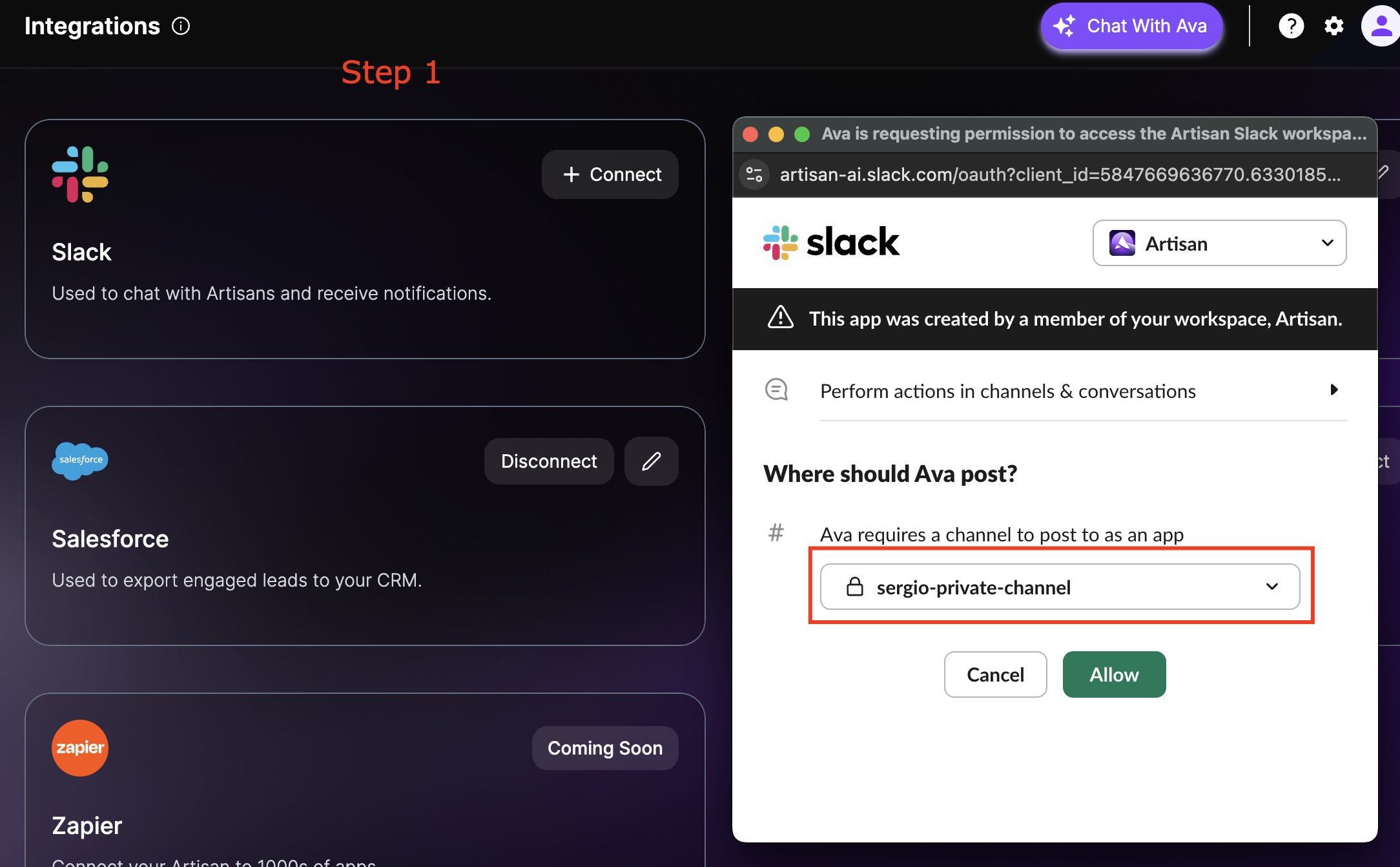
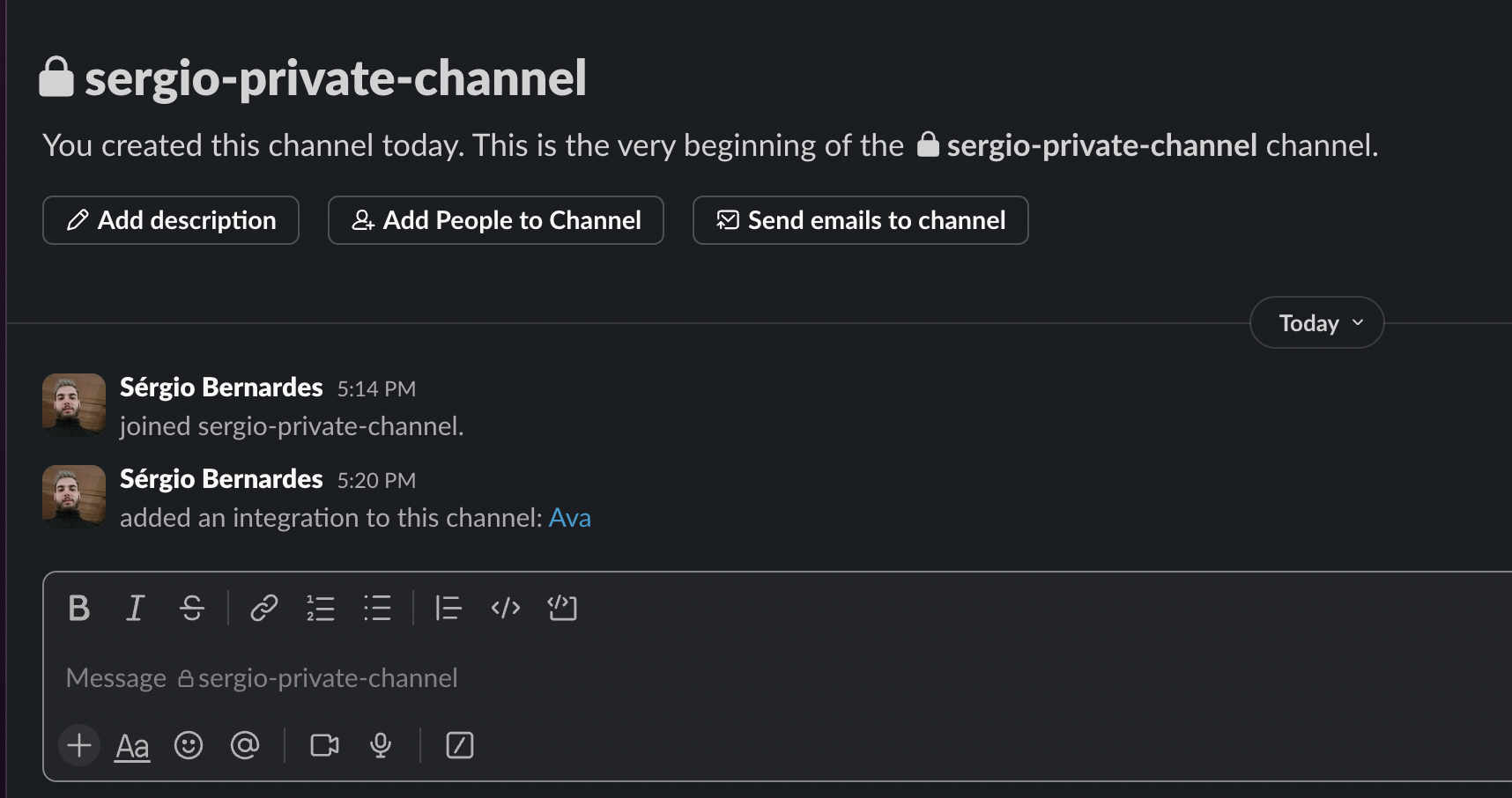
Step 3 — Confirm Ava is added to your channel
Open your selected Slack channel. You'll see a system message confirming "added an integration to this channel: Ava." The app is now connected, but Ava still needs to be added as a user to interact in the channel.
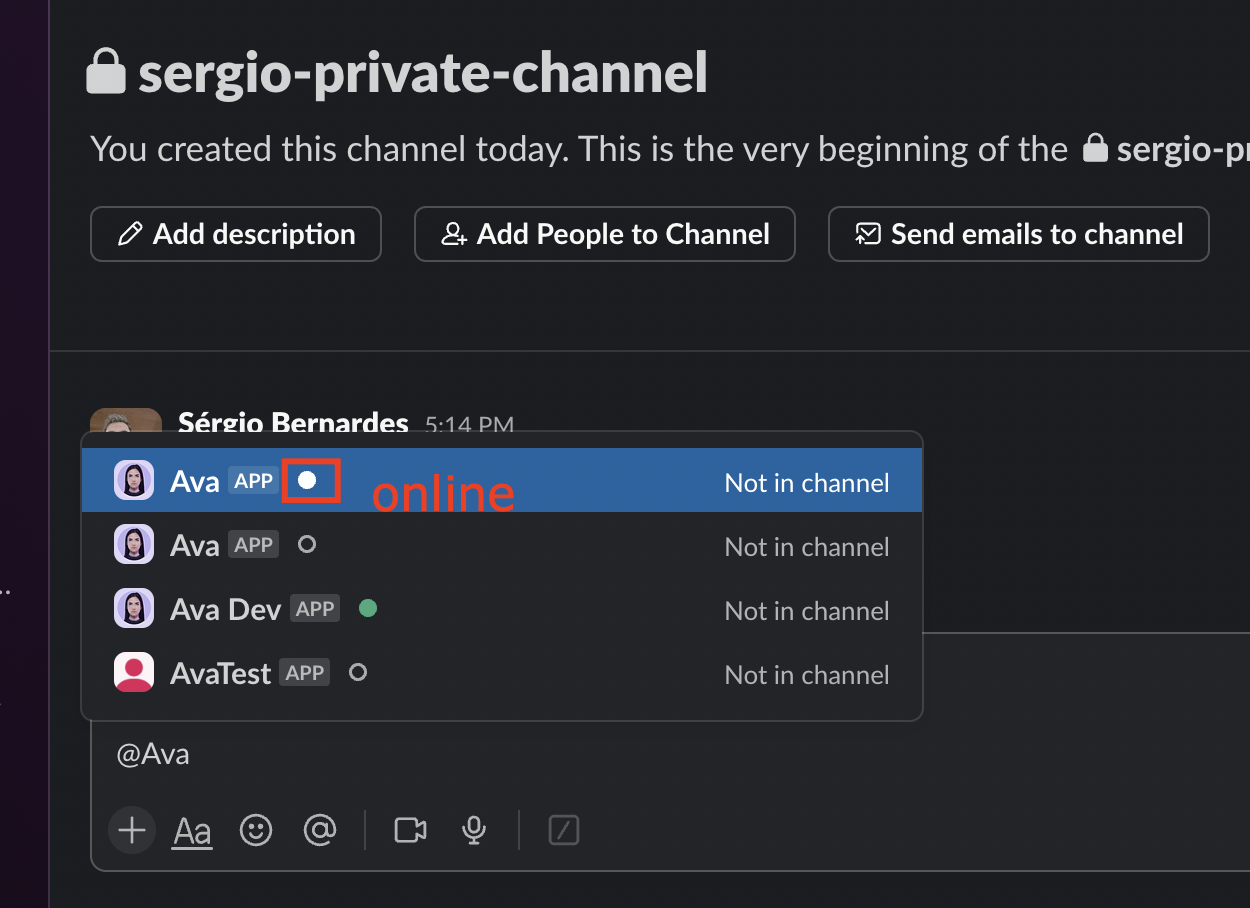
Step 4 — Mention @Ava to trigger the invite prompt
Type @Ava in the channel's message box. A dropdown will appear listing available Ava apps. Select the one labeled Ava (not Ava Dev or AvaTest) and send the message.
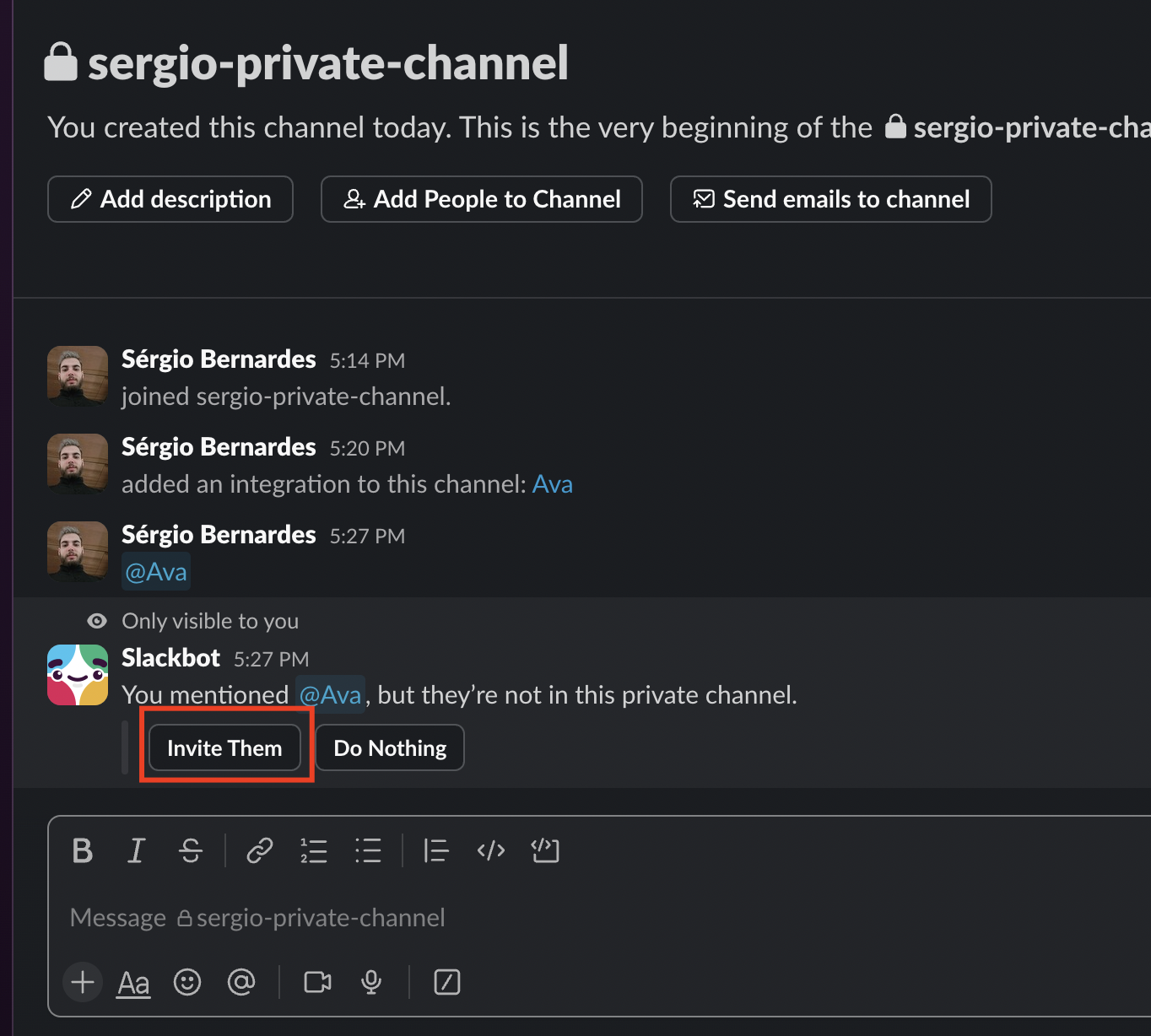
Step 5 — Click "Invite Them" when Slack prompts you
After mentioning @Ava, Slackbot will reply privately with "You mentioned @Ava, but they're not in this private channel." Click the Invite Them button to officially add Ava as a member.
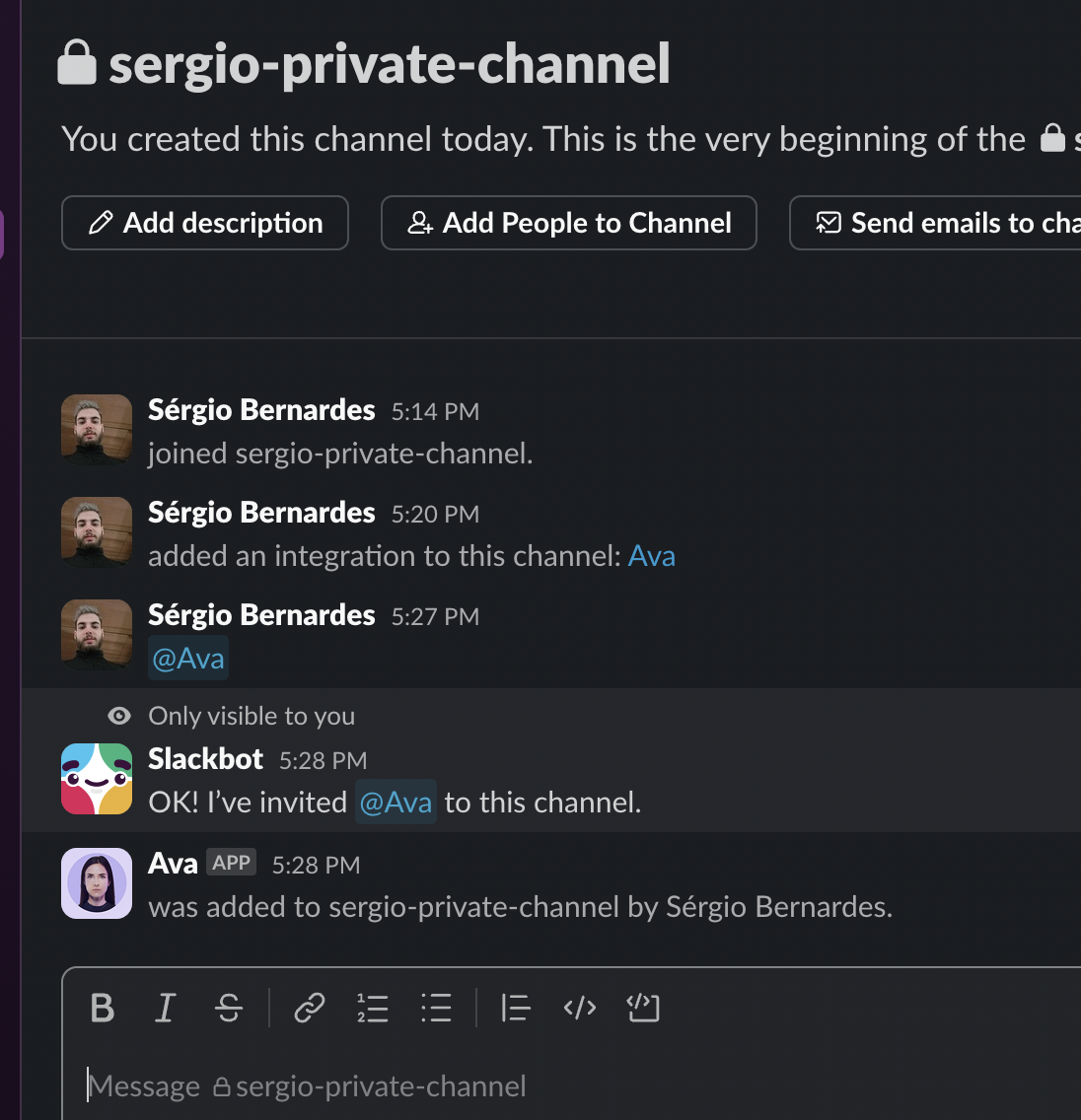
Step 6 — Ava joins the channel as a member
Slackbot will confirm "OK! I've invited @Ava to this channel" and you'll see Ava added as a member. Ava is now ready to receive and post messages on your behalf.
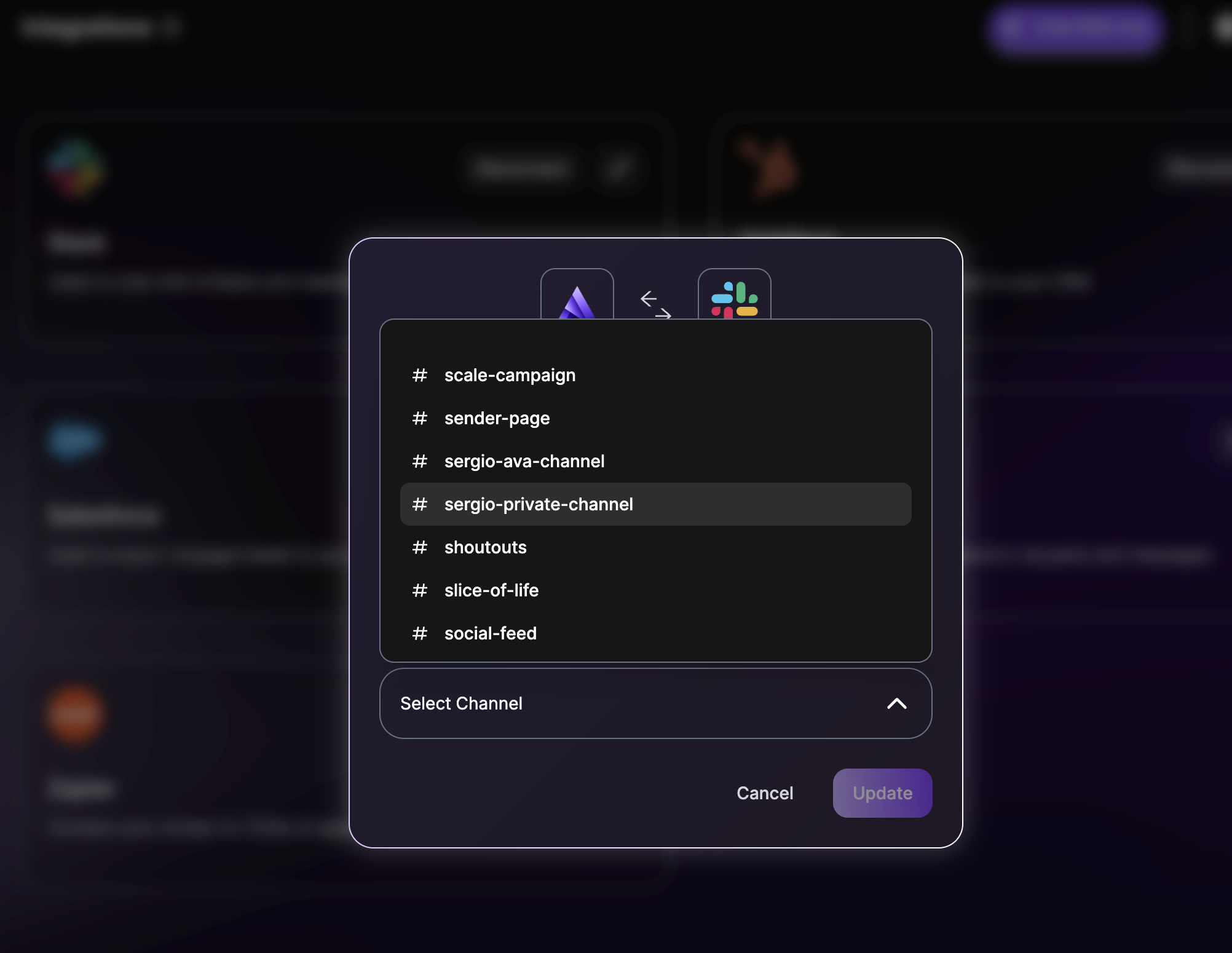
Step 7 — Finalize the setup in Artisan
Return to your Artisan dashboard and refresh the Integrations page. Open the Slack integration modal, select your channel from the dropdown, and click Update. You're live — Ava will now post notifications directly to your chosen channel.
AI-generated content disclaimer
Ava is powered by large language models. She generates outreach messages, drafts replies to prospects, and creates personalized content autonomously.
AI-generated content may occasionally contain inaccuracies or errors in fact. We recommend reviewing messages before they're sent in cases where accuracy is critical. You can configure Ava to require human approval for any reply before it is sent, and all escalated messages that arrive in Slack include the full context so your team can verify before approving.
Privacy and data handling
Ava only posts to the Slack channel you explicitly designate and does not access other channels or conversations beyond what's necessary to deliver notifications. For full details on how Artisan collects, manages, and stores your data, read our and .
Tips for success
Take your time and follow the steps carefully. Each part of the integration is required for Ava to work properly in Slack. If any step fails, refresh both the Slack channel and the Artisan Integrations page before retrying.
Need help?
Email us at [email protected] and our team will get back to you within 2 business days.