Webhook Campaigns Setup Guide
Last updated: March 26, 2026
Overview
This guide walks through how to set up a webhook campaign from scratch. Webhook campaigns are used when you want to push leads directly into the system via web requests.
Step 1: Create a Webhook Campaign
Go to Campaigns → Standard
Under Lead Source, select Webhook
Save the campaign
 At this point, you'll see the message: "Your organization doesn't have a webhook API key — contact CSM." If you see this, reach out to your CSM to have a webhook token generated for your account.
Step 2: Verify Your Webhook Token
Once your CSM has set up your token:
Go back to the campaign you created
Refresh the page
You should now see:
A webhook token (API key)
An example cURL request
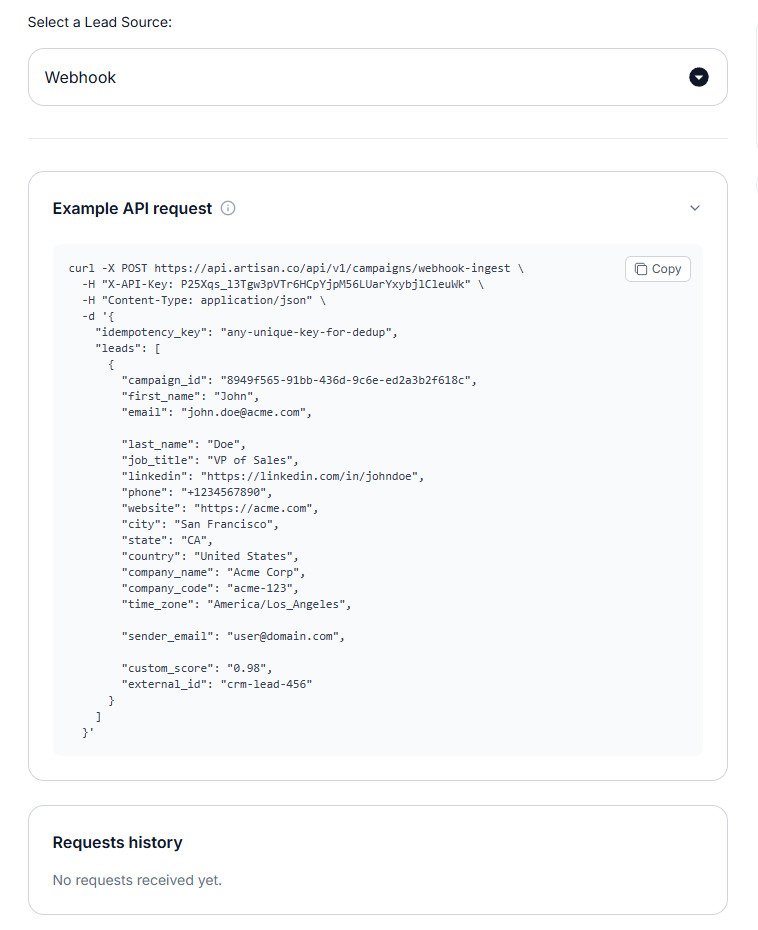
Step 3: Send Leads via Webhook
Use any API client (e.g. Postman) to send leads to your campaign. Your request body must include two fields:
FieldDescription | |
| A unique string that identifies this request (e.g. |
| A list of lead objects, each containing a |
Example Body Structure
{
  "idempotency_key": "unique-key-here",
  "leads": [
    {
      "name": "Alice",
      "campaign_id": "<campaign_id_1>"
    },
    {
      "name": "Bob",
      "campaign_id": "<campaign_id_2>"
    }
  ]
}
 Tip: A single request can push leads into multiple campaigns simultaneously by including different
 campaign_id values in the leads list. You can find a campaign's ID from the campaign settings page.
Step 4: Confirm Leads Were Received
Send the request — you should receive a 202 Accepted response
Refresh the campaign — your new leads will appear with the request ID as a prefix
If you targeted multiple campaigns in one request, check each one to confirm leads appear
About the Idempotency Key
The idempotency key is a duplicate prevention guardrail:
If the same key is used more than once within one week, the request will be rejected as a duplicate
Always use a unique key per batch to ensure your leads are accepted
Important Notes on Lead Preview
Leads will only appear in the preview after the campaign has been fully set up and activated
After activation, allow some time for leads to populate
Once populated, you can preview leads and generate messages
Quick Reference Checklist
[ ] Create a Standard campaign with Webhook as the lead source
[ ] Contact your CSM to have a webhook token generated
[ ] Refresh the campaign to confirm the token and example request appear
[ ] Send leads via API request with
idempotency_keyandleads[ ] Confirm leads appear in all targeted campaigns
[ ] Activate the campaign and wait for leads to populate before previewing
Need Assistance?
Contact our Support team if you have any questions or issues!