Generate Sample Emails
Last updated: January 10, 2025
 Article Overview:
This article explains what the "Generate Sample Email" feature is and how to use it.
 What does "Generate Sample Email" do?
This feature allows you to preview and optimize emails before enabling Full Autopilot mode.
How do I use the "Generate Sample Email" feature?
Step 1: Access the Sample Email Creator Tool
Navigate to the campaign page.
Click Generate Sample Email, located at the bottom left of the individual campaign page.
Step 2: Select Email Components
Feature Selection:
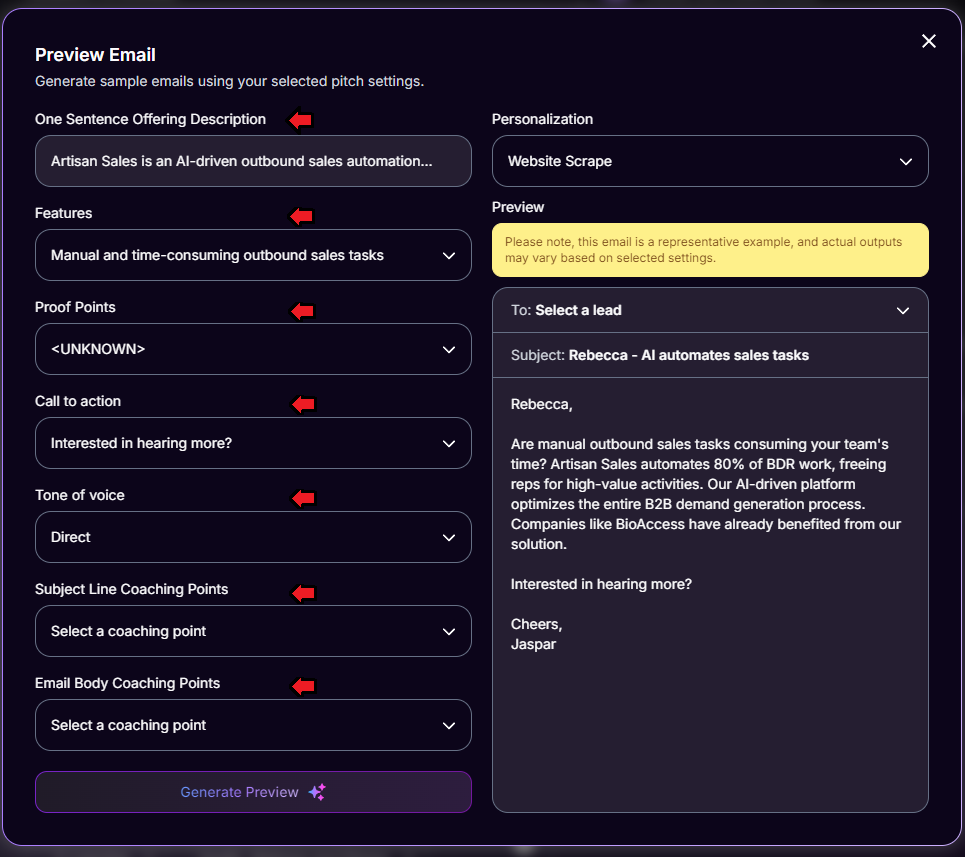
Use the dropdown menu on the left to customize the following:Feature: Choose the main email focus.
Proof Point: Add supporting evidence.
Call to Action: Define the next step for the recipient.
Tone of Voice: Adjust how Ava communicates.
Coaching Points: Include specific feedback or coaching insights.
Step 3: Choose Lead Personalization Options
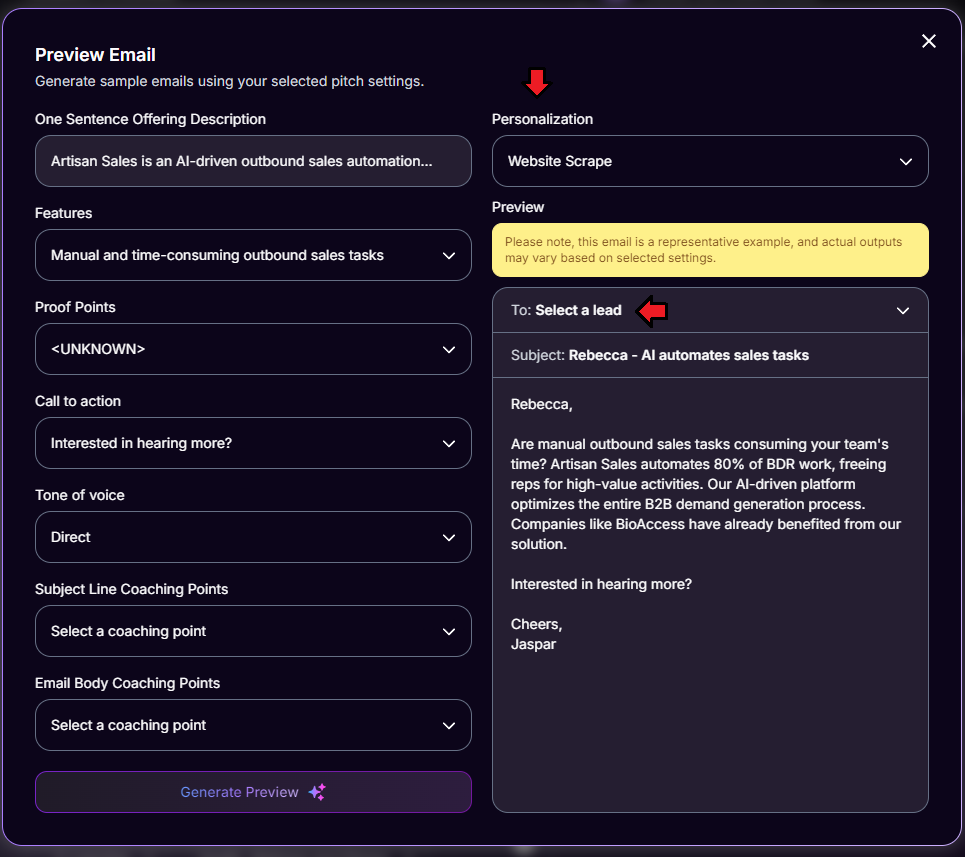
On the right, select the lead to preview the email for.
Choose the personalization source to tailor the email to the selected lead.
Step 4: Refine Campaign Settings
Adjust the settings from Step 2 to optimize the email output.
Preview the changes until satisfied with the result.
Step 5: Enable Full Autopilot
Once you’re happy with Ava’s output, check out our Running Ava on Copilot vs Autopilot guide.
 Remember to always review each preview email carefully to maintain consistency!
 Tips for Success:
Test different combinations of features, proof points, and tone of voice for the best results.
Need Assistance?
Contact our Support team if you have any questions or issues!