How to integrate Ava 2.0 with Slack
Last updated: April 22, 2026
Overview
Artisan's AI BDR, Ava, runs your entire outbound motion autonomously, from prospecting to booking meetings. The Slack integration keeps your team in the loop on everything Ava is doing, right where you already work, including real-time lead reply notifications, escalations for human approval, and urgent platform alerts.
This article walks you through installation and setup. It takes about 2 minutes.
Before you start
You'll need:
An active Artisan account. If you don't have one, sign up at app.artisan.co.
Admin access to your Slack workspace.
Install the app
Once you're signed into Artisan, follow the steps below. If you'd prefer to jump straight to the OAuth flow, click the button below:

Installation steps
Step 1 — Open Settings from your Artisan dashboard
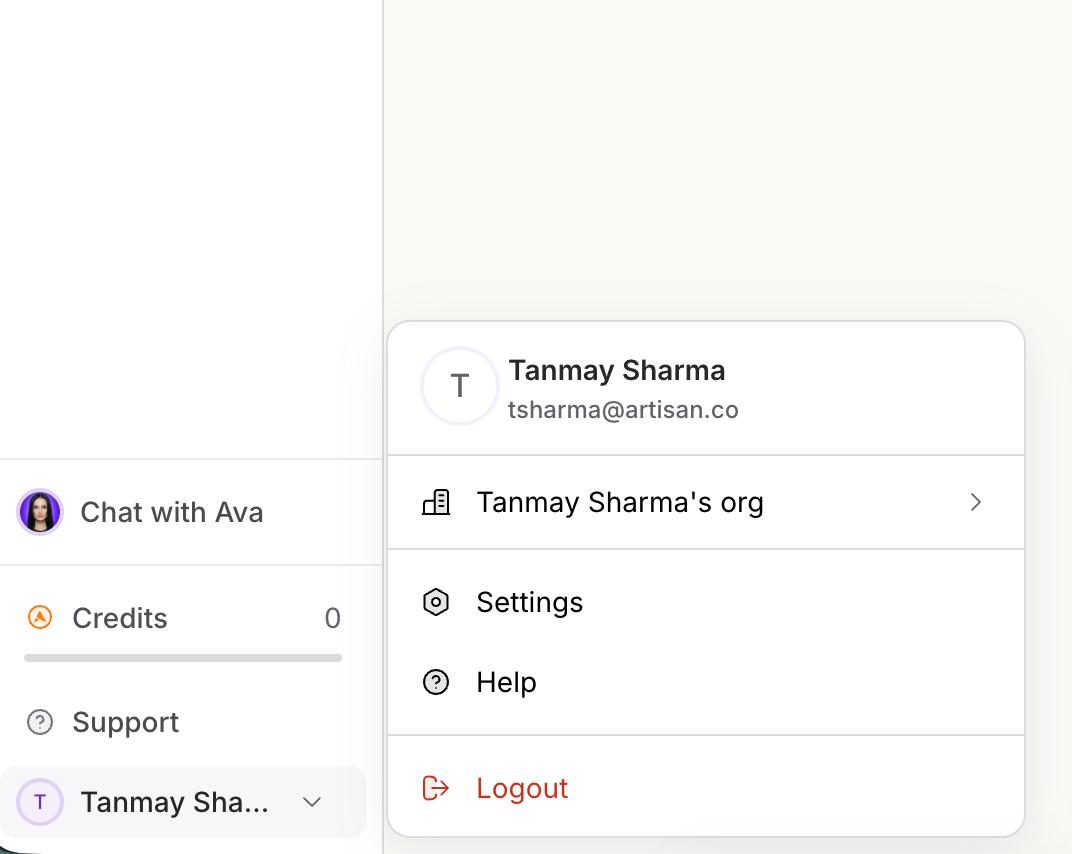
After signing into Artisan, click your user profile in the bottom-left corner of the sidebar. A menu will expand showing your name, organization, Settings, Help, and Logout. Click Settings.
Step 2 — Navigate to Integrations and click Connect on the Slack card
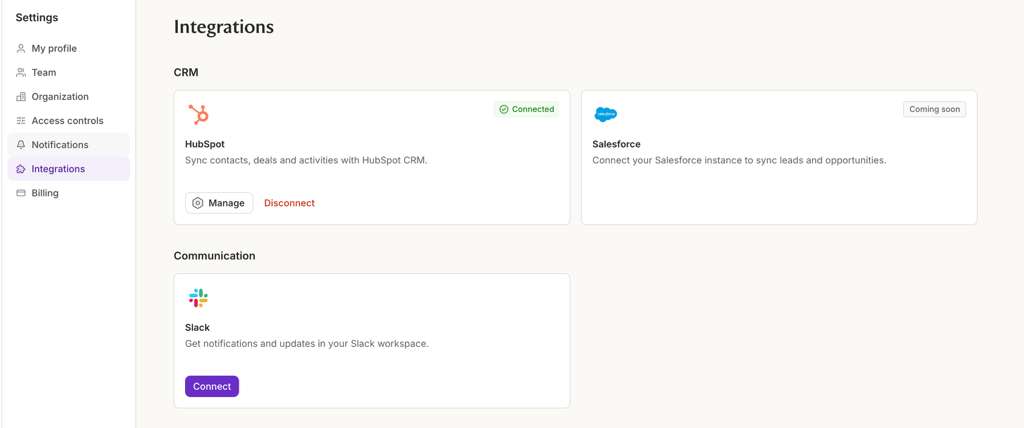
In Settings, open the Integrations tab. You'll see integration cards for HubSpot, Salesforce, and Slack. Under the Communication section, find the Slack card and click Connect.
Step 3 — Allow Artisan Ava 2.0 to access your Slack workspace
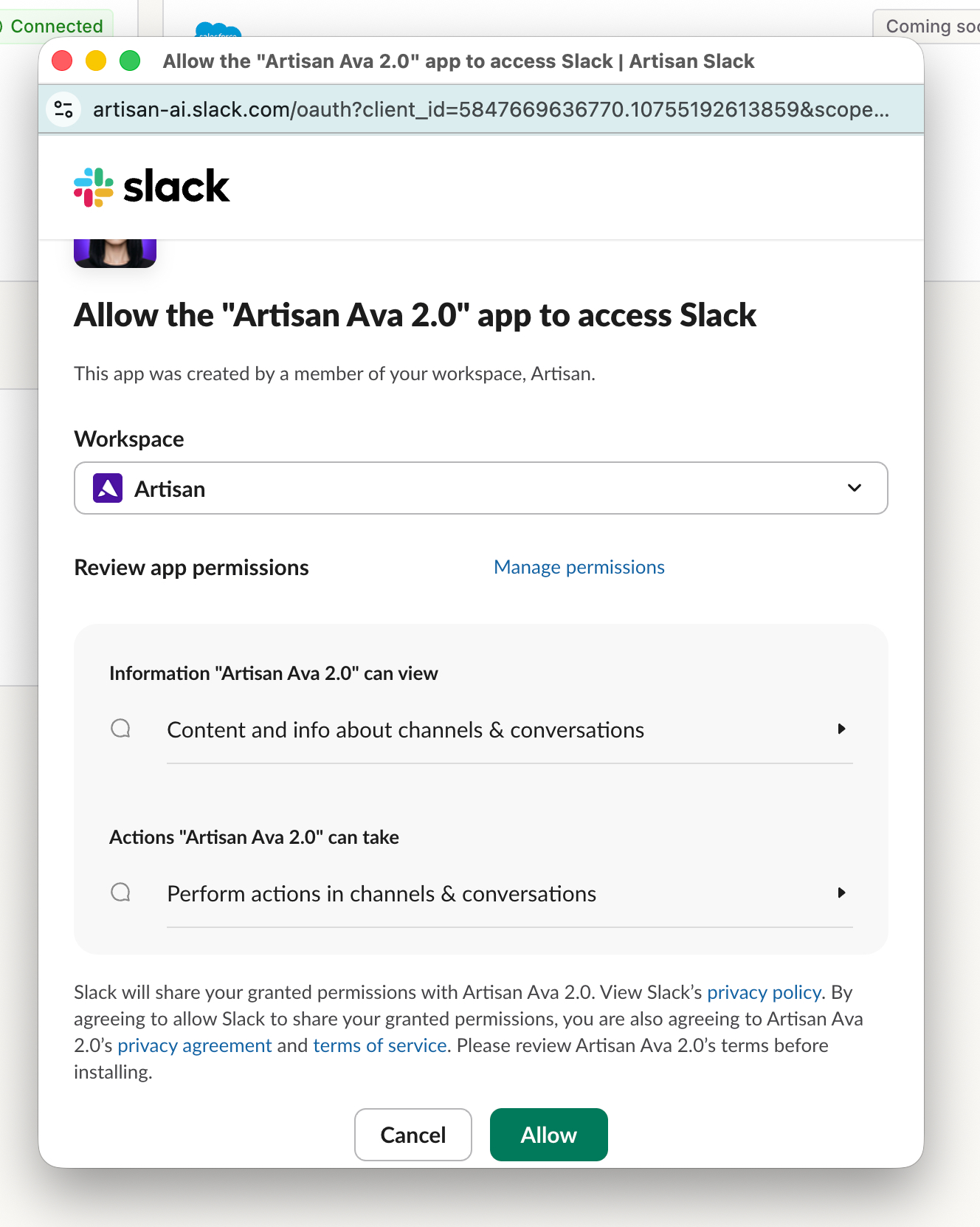
Slack's OAuth screen will open. Review the permissions Artisan Ava 2.0 is requesting:
Information the app can view (content and info about channels & conversations)
Actions the app can take (perform actions in channels & conversations)
Make sure you've selected the correct workspace from the dropdown, then click Allow.
Step 4 — Confirm Ava is added to your channel
Open your selected Slack channel. You'll see a system message confirming "added an integration to this channel: Ava." The app is now connected, but Ava still needs to be added as a user to interact in the channel.
Step 5 — Mention @Ava to trigger the invite prompt
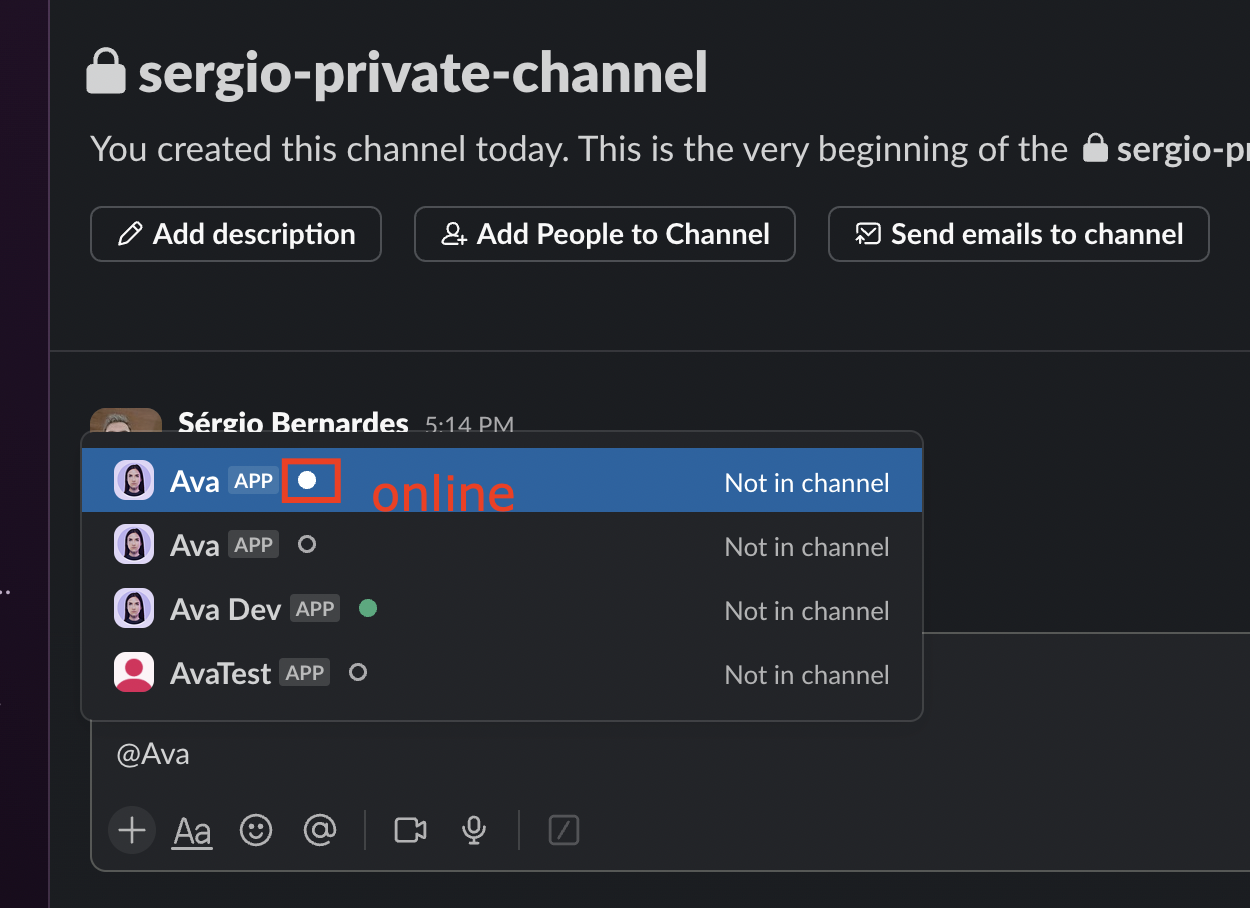
Type @Ava in the channel's message box. A dropdown will appear listing available Ava apps. Select the one labeled Ava and send the message.
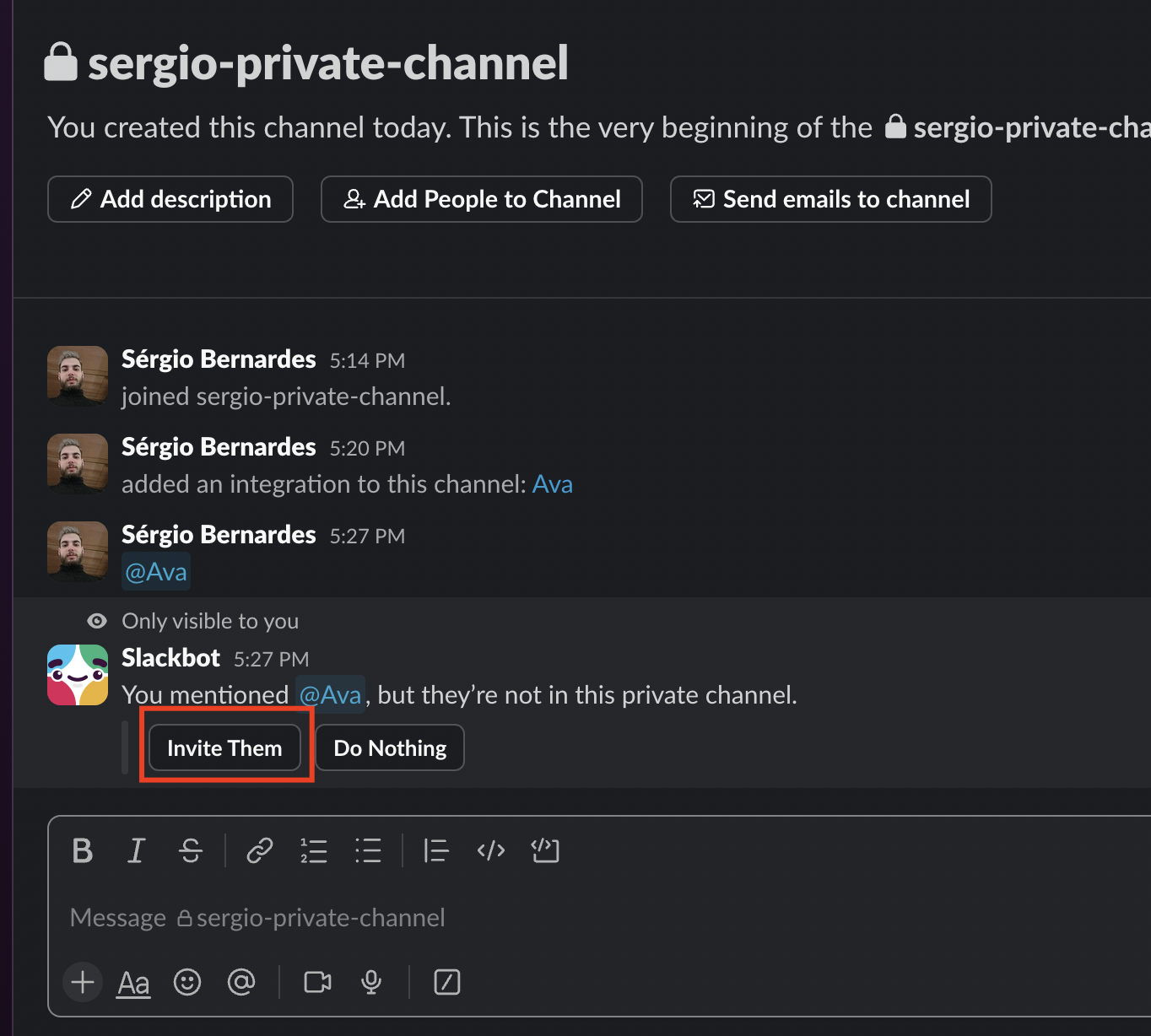
Step 6 — Click "Invite Them" when Slack prompts you
After mentioning @Ava, Slackbot will reply privately with "You mentioned @Ava, but they're not in this private channel." Click the Invite Them button to officially add Ava as a member.
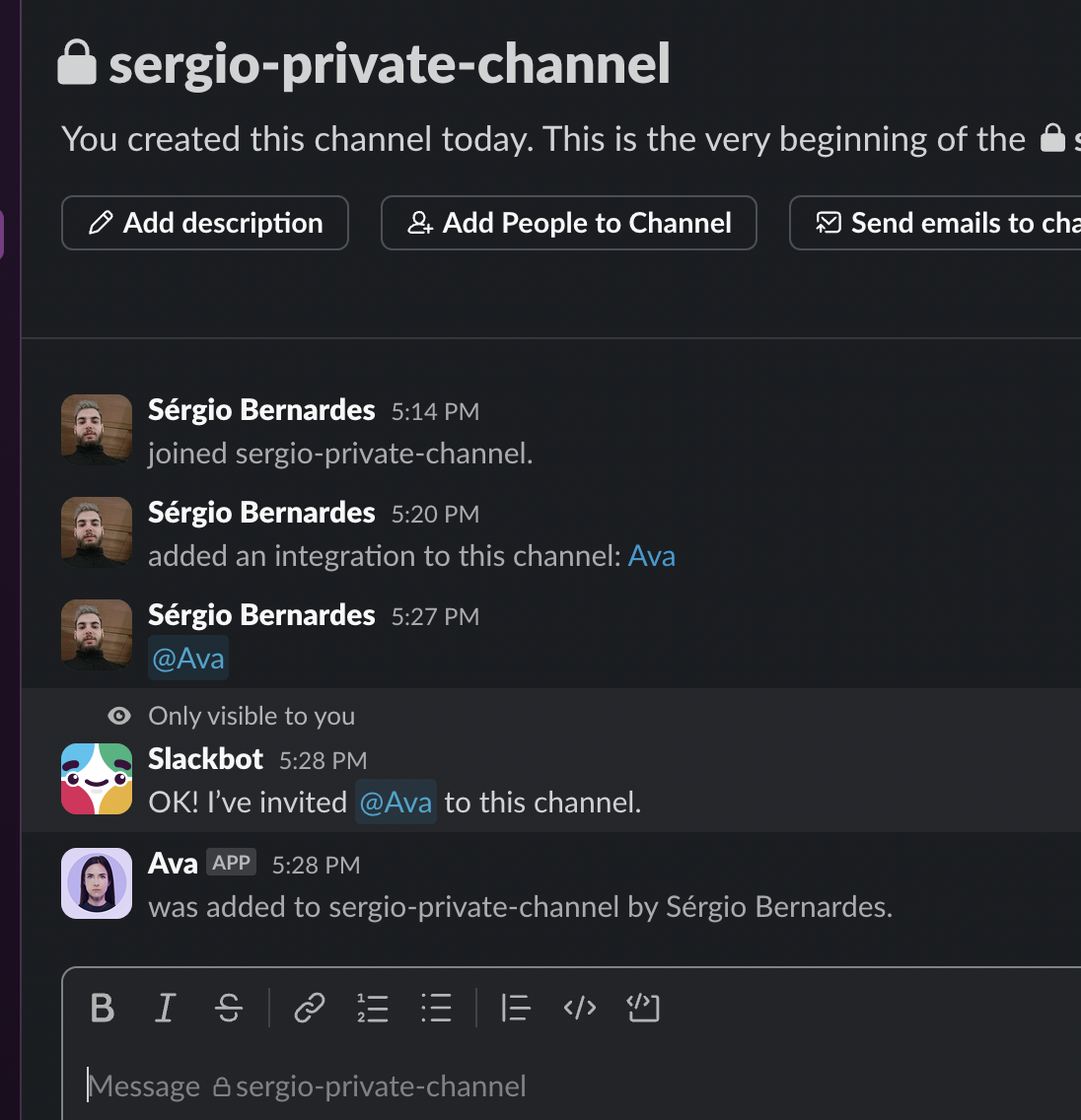
Step 7 — Ava joins the channel as a member
Slackbot will confirm "OK! I've invited @Ava to this channel" and you'll see Ava added as a member. Ava is now ready to receive and post messages on your behalf.
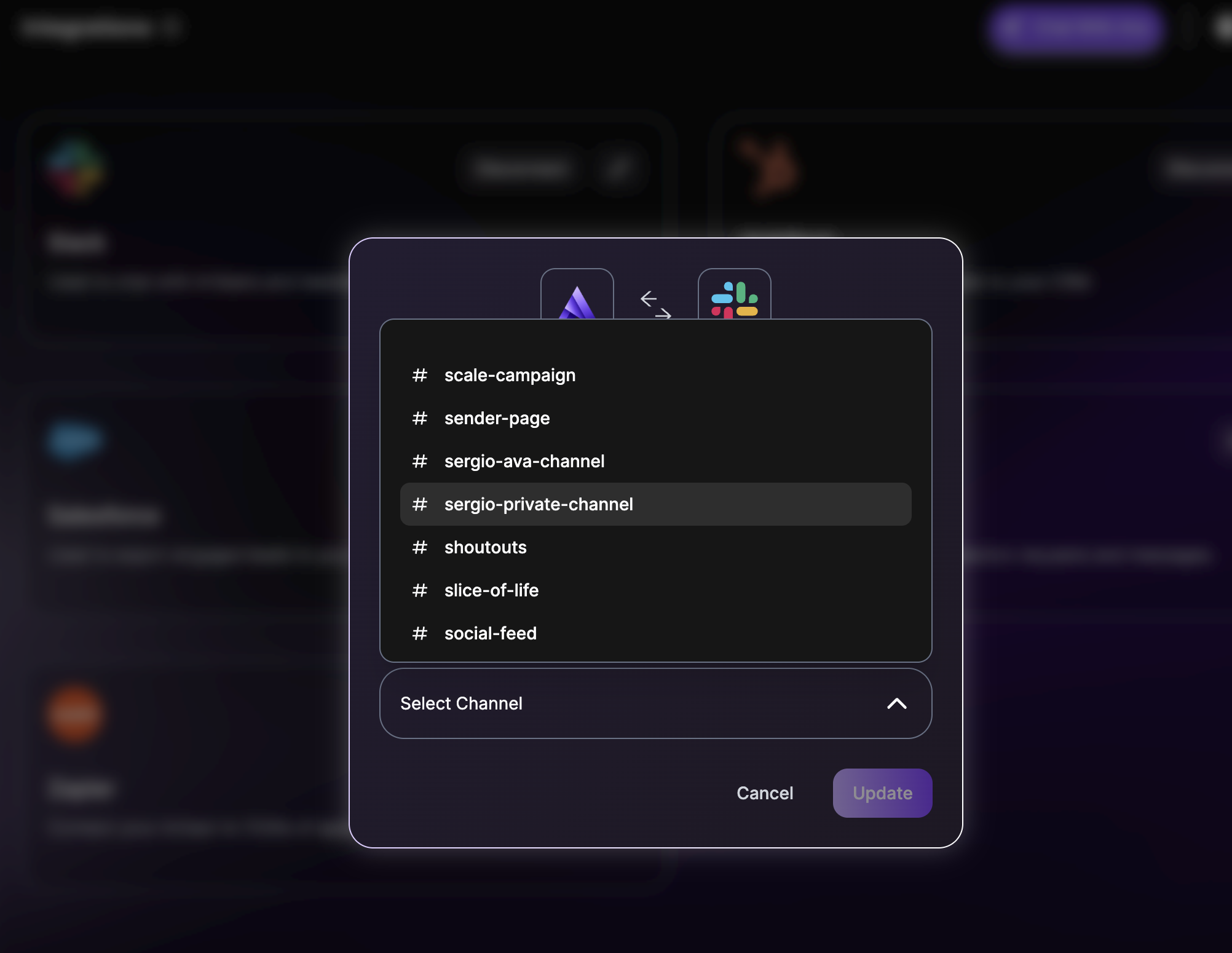
Step 8 — Finalize the setup in Artisan
Return to your Artisan dashboard and refresh the Integrations page. Open the Slack integration modal, select your channel from the dropdown, and click Update. You're live — Ava will now post notifications directly to your chosen channel.
What Ava posts in Slack
Once installed, Ava posts three types of notifications to your designated channel:
Real-time lead reply alerts — When a prospect replies to one of Ava's outbound emails, your team gets an instant Slack notification with the lead's name, job title, company, the campaign it came from, and the full reply. Replies are color-coded by sentiment (green for positive, yellow for neutral, red for negative).
Escalations for human approval — When Ava is running autonomously and needs your input on a reply, she posts her drafted response in Slack with an "Approve & send" button so you can approve with one click.
Platform and operational alerts — Urgent account alerts, credit exhaustion warnings, integration disconnects, and daily digests of overdue tasks.
You can route different notification types to different channels and fine-tune per-notification preferences from within Artisan.
AI-generated content disclaimer
Ava is powered by large language models. She generates outreach messages, drafts replies to prospects, and automates decisions about who to contact and when.
AI-generated content may occasionally contain inaccuracies. We recommend reviewing messages in cases where accuracy is critical. You can configure Ava to require human approval for any reply before it is sent, and all escalated drafts that arrive in Slack include the full lead context so your team can verify before approving.
Privacy and data handling
Ava only posts to the Slack channel you explicitly designate and does not access other channels or conversations beyond what's necessary to deliver notifications. For full details on how Artisan collects, manages, and stores your data, read our and .
Need help?
Email us at [email protected] and our team will get back to you within 2 business days.